> ## Documentation Index
> Fetch the complete documentation index at: https://docs.rocky.global/llms.txt
> Use this file to discover all available pages before exploring further.
# Event registration
> Learn how to register for a sporting event step by step.
## Flow overview
An athlete can start registering for an event **without having logged in beforehand**. The platform opens a public view of the event, lets you select an active rate, and guides you through a multi-step form. If you don't have an account, one is created automatically once registration is complete.
From the [home page](https://app.rocky.global) select any event from the *Upcoming Events* list. See [Search events](/en/roles/atleta/buscar-eventos).
The **modalities and rates** appear at the bottom of the event page. Choose the rate that is currently active and click **Select Rate**.
Fill in the form for step **1. Personal information** with the required fields and any additional steps the organizer has configured.
In step **2. Merchandise** you can add optional products (for example official t-shirts) or continue without buying.
In step **3. Additional services** you can add insurance and add-ons offered by the organizer.
Click **Finish registration** to go to the payment gateway. Once payment is completed, the registration is **confirmed** and you receive the receipt by email. See [Payments and billing](/en/roles/atleta/pagos-facturacion).
## 1. Rate selection
Each event defines one or more **rates** (for example *OCEANMAN*, *HALF OCEANMAN*, *SPRINT*, *OCEANKIDS*, *OCEANTEAMS*, *HALF OCEANMAN 5KM & SPRINT 2 KM*) and, within each one, a **rate schedule** with prices by date range.
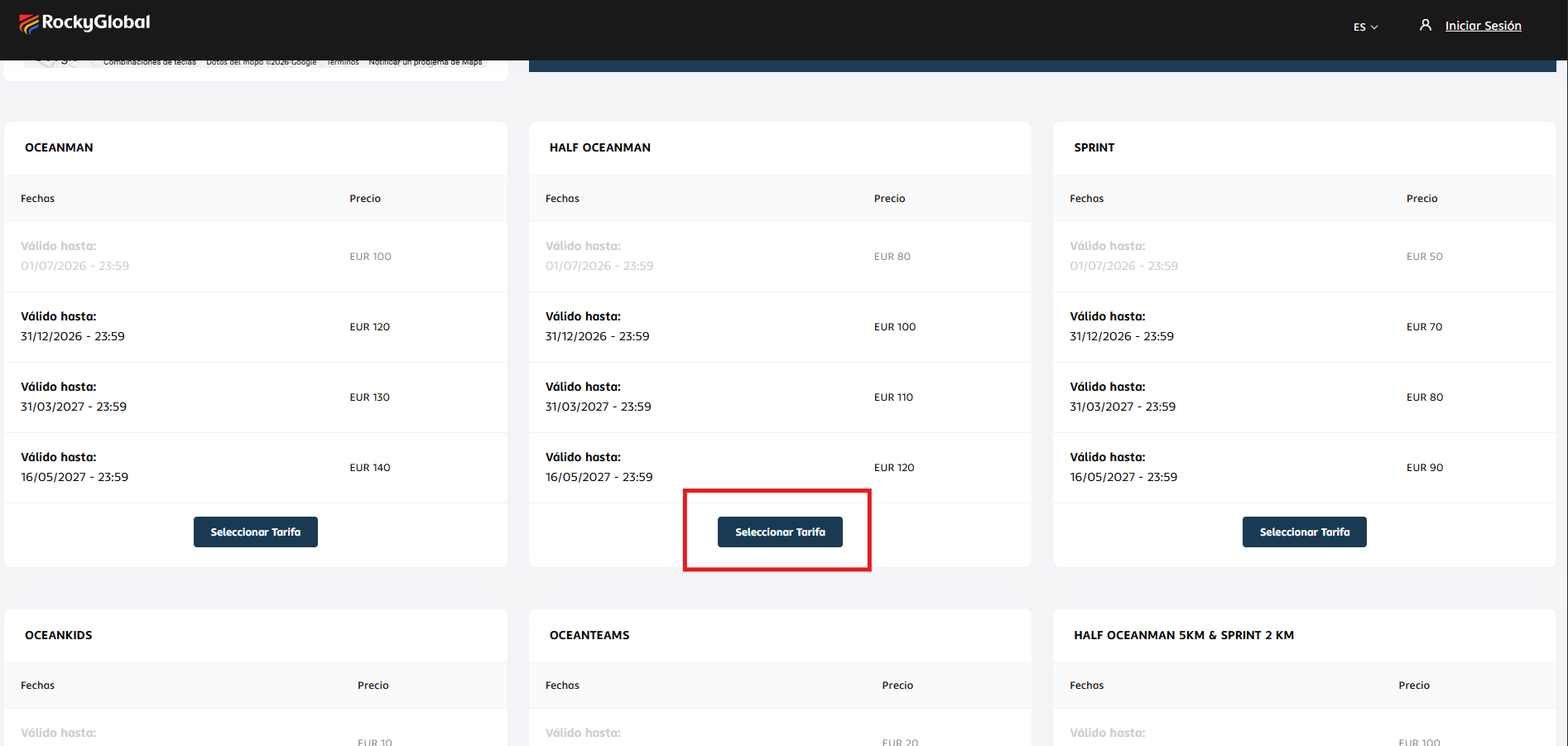 For each rate the platform shows:
* **Dates:** the range during which the rate is active (*Valid until: DD/MM/YYYY hh:mm*).
* **Price:** amount in the event's currency (for example EUR).
* **Select Rate button:** only appears enabled when within the registration dates; rate rows that have already expired are shown in gray and cannot be selected.
**Active rate:** this is the first row whose *valid until* date is in the future. Even though you can see earlier rates (already closed) and later ones (not yet active), you can only register using the rate that is active at the moment you click.
If all rates have expired, the **Select Rate** button will appear disabled or won't be shown. In that case registration for that rate is closed.
## 2. Personal information
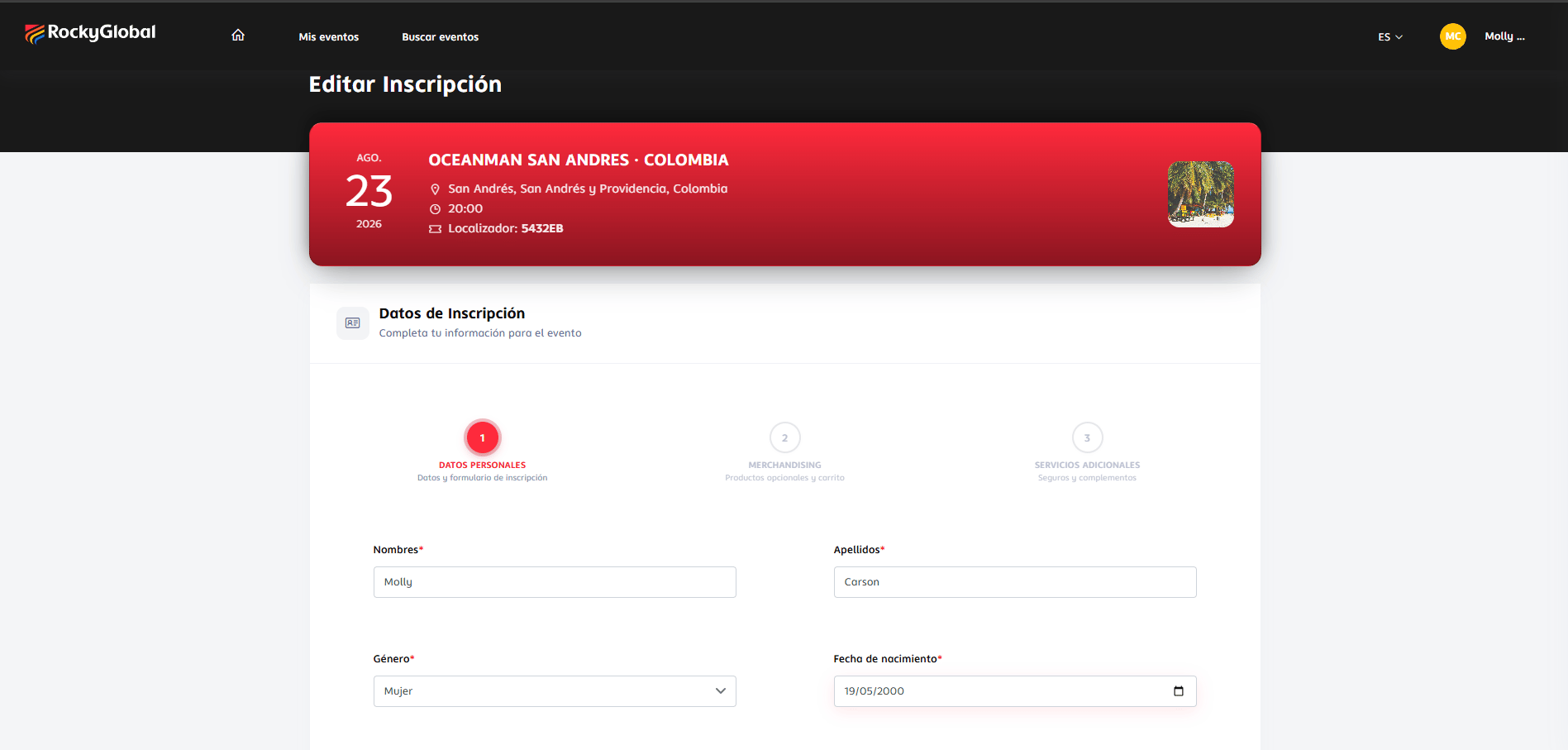
Once you select a rate, you enter the registration wizard. The indicator at the top shows the steps configured for the event, for example: **1. Personal information**, **2. Merchandise**, **3. Additional services**.
For each rate the platform shows:
* **Dates:** the range during which the rate is active (*Valid until: DD/MM/YYYY hh:mm*).
* **Price:** amount in the event's currency (for example EUR).
* **Select Rate button:** only appears enabled when within the registration dates; rate rows that have already expired are shown in gray and cannot be selected.
**Active rate:** this is the first row whose *valid until* date is in the future. Even though you can see earlier rates (already closed) and later ones (not yet active), you can only register using the rate that is active at the moment you click.
If all rates have expired, the **Select Rate** button will appear disabled or won't be shown. In that case registration for that rate is closed.
## 2. Personal information
Once you select a rate, you enter the registration wizard. The indicator at the top shows the steps configured for the event, for example: **1. Personal information**, **2. Merchandise**, **3. Additional services**.
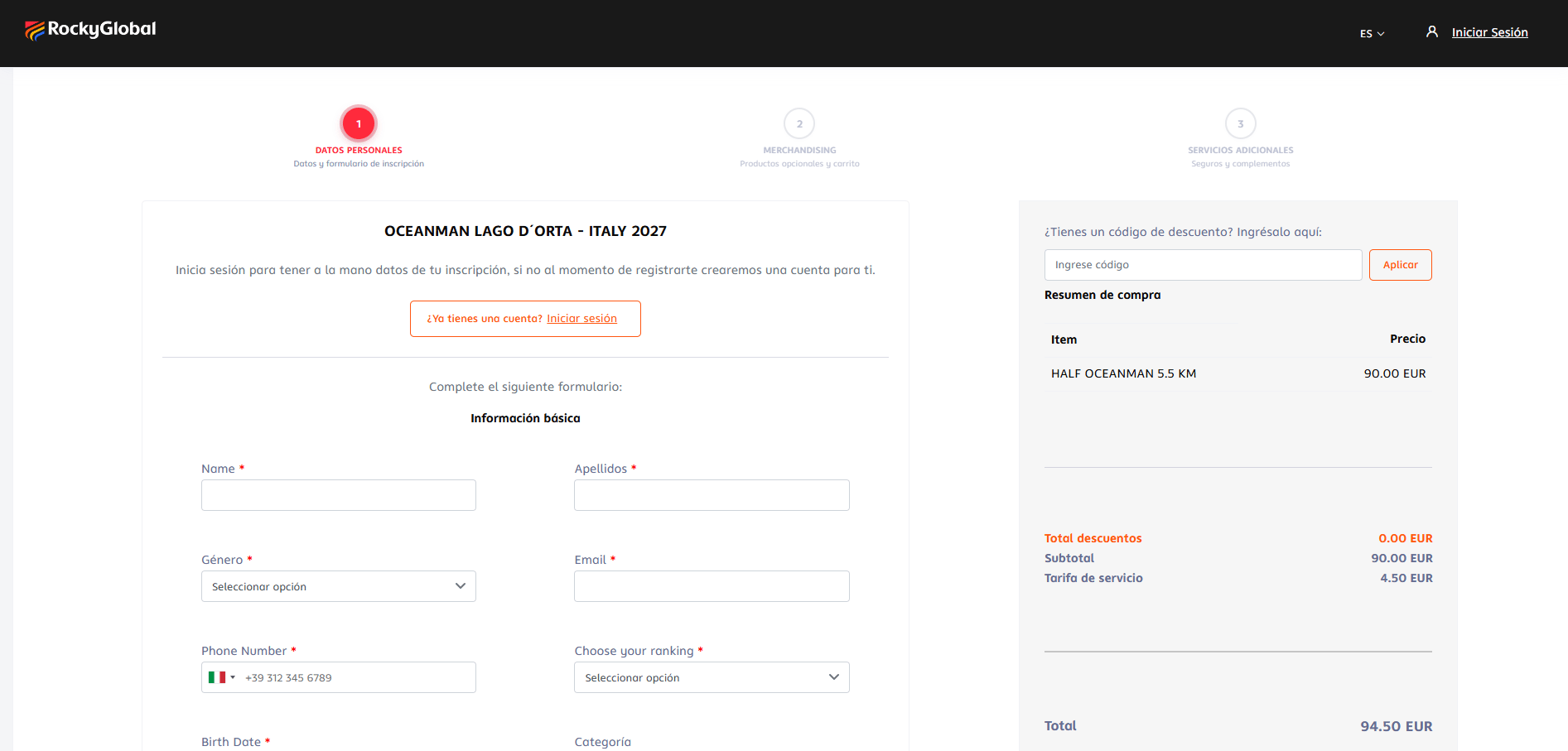 The right-hand panel always shows the **Purchase summary**:
* Selected item (modality + distance).
* **Total discounts**, **Subtotal**, **Service fee**, and **Total**.
* **Do you have a discount code?** field to apply coupons before paying. See [Discounts and codes](/en/roles/organizador/descuentos-codigos).
### Registration form
The form has a **Basic information** section common to all events and, optionally, additional sections configured by the organizer (team, emergency contact, medical information, sizes, etc.).
Required fields (marked with `*`) in Basic information:
| Field | Description |
| ------------------------------ | ------------------------------------------------------------------------ |
| **Name** | Athlete's first name. |
| **Last name** | Athlete's last name. |
| **Gender** | Selector: options defined by the event. |
| **Email** | Athlete's email. This is used to create the account if it doesn't exist. |
| **Mobile phone** | Phone number with international prefix. |
| **Choose your classification** | Ranking selector based on the modality. |
| **Date of birth** | (validated against the configured age groups). |
| **Category** | Calculated or selected based on gender + age + modality. |
If you already have an account, click **Already have an account? Log in** at the top of the form. The platform will automatically load your saved information and you'll only need to confirm it.
**Automatic registration:** if you register without an account, Rocky Global will create one for you at the end of the process using the email from the form. See [Account registration](/en/roles/atleta/registro-cuenta).
### Additional event steps
In addition to Basic information, the organizer can add **custom steps and fields** to the form (for example emergency contact, t-shirt size, club, federation number, acceptance of rules, etc.). These appear within the same step 1 and are required when the organizer marks them as such.
## 3. Merchandise
In step 2 you can add optional products the organizer has published in the event store (t-shirts, kits, commemorative medals, etc.).
The right-hand panel always shows the **Purchase summary**:
* Selected item (modality + distance).
* **Total discounts**, **Subtotal**, **Service fee**, and **Total**.
* **Do you have a discount code?** field to apply coupons before paying. See [Discounts and codes](/en/roles/organizador/descuentos-codigos).
### Registration form
The form has a **Basic information** section common to all events and, optionally, additional sections configured by the organizer (team, emergency contact, medical information, sizes, etc.).
Required fields (marked with `*`) in Basic information:
| Field | Description |
| ------------------------------ | ------------------------------------------------------------------------ |
| **Name** | Athlete's first name. |
| **Last name** | Athlete's last name. |
| **Gender** | Selector: options defined by the event. |
| **Email** | Athlete's email. This is used to create the account if it doesn't exist. |
| **Mobile phone** | Phone number with international prefix. |
| **Choose your classification** | Ranking selector based on the modality. |
| **Date of birth** | (validated against the configured age groups). |
| **Category** | Calculated or selected based on gender + age + modality. |
If you already have an account, click **Already have an account? Log in** at the top of the form. The platform will automatically load your saved information and you'll only need to confirm it.
**Automatic registration:** if you register without an account, Rocky Global will create one for you at the end of the process using the email from the form. See [Account registration](/en/roles/atleta/registro-cuenta).
### Additional event steps
In addition to Basic information, the organizer can add **custom steps and fields** to the form (for example emergency contact, t-shirt size, club, federation number, acceptance of rules, etc.). These appear within the same step 1 and are required when the organizer marks them as such.
## 3. Merchandise
In step 2 you can add optional products the organizer has published in the event store (t-shirts, kits, commemorative medals, etc.).
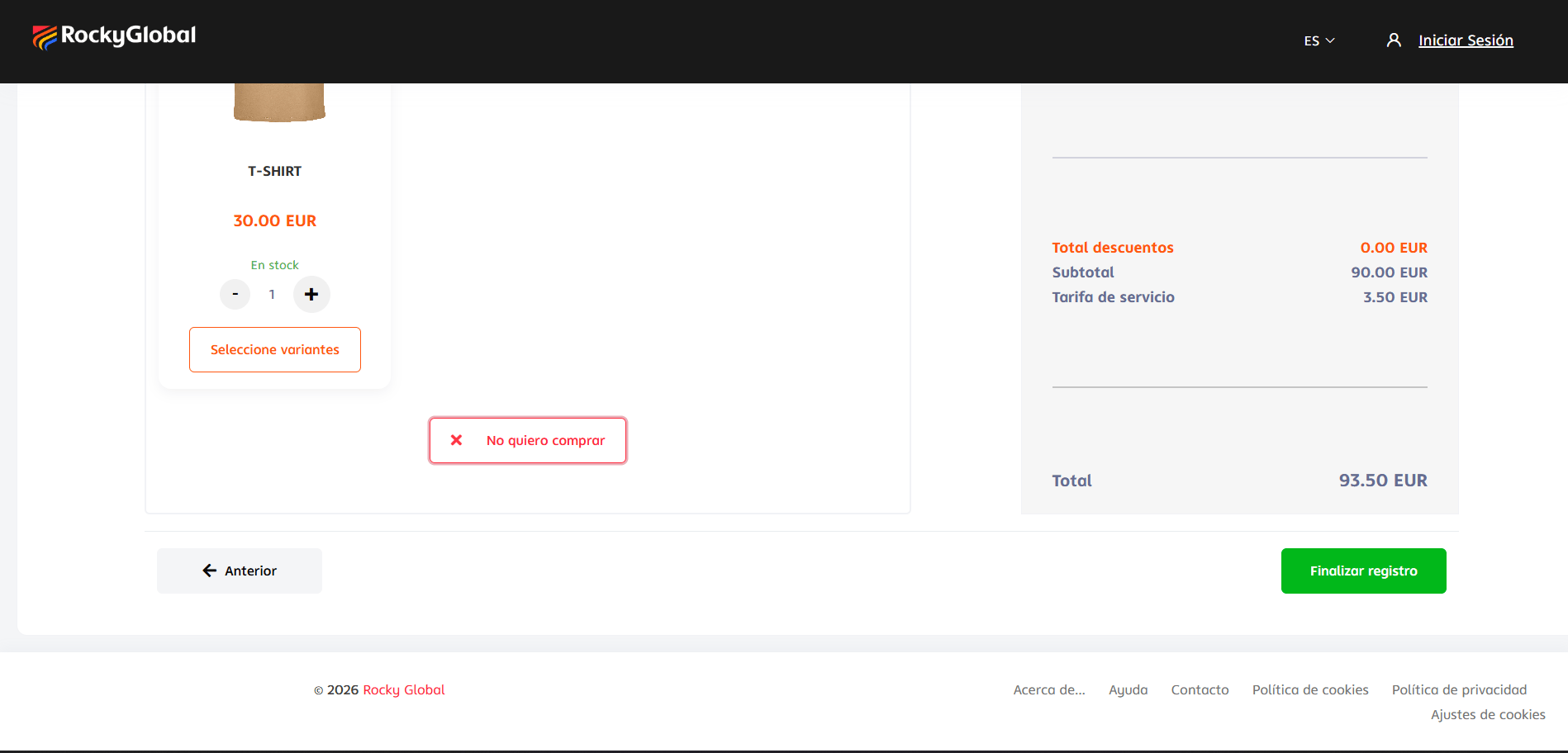 For each product you can:
* View **price**, **availability** (*In stock*), and **image**.
* Adjust the **quantity** with the `-` and `+` buttons.
* Click **Select variants** if the product has size or color options.
* Click **I don't want to buy** to skip that product and continue without it.
The **Purchase summary** in the right panel updates in real time with each added product and the corresponding service fee.
You can go back to the previous step with **← Previous** or continue with the green **Finish registration** button.
## 4. Additional services and payment
If the organizer offers **insurance or add-ons** (step 3), they are shown before the payment gateway. Upon confirming, you are redirected to the payment provider to complete the transaction.
For each product you can:
* View **price**, **availability** (*In stock*), and **image**.
* Adjust the **quantity** with the `-` and `+` buttons.
* Click **Select variants** if the product has size or color options.
* Click **I don't want to buy** to skip that product and continue without it.
The **Purchase summary** in the right panel updates in real time with each added product and the corresponding service fee.
You can go back to the previous step with **← Previous** or continue with the green **Finish registration** button.
## 4. Additional services and payment
If the organizer offers **insurance or add-ons** (step 3), they are shown before the payment gateway. Upon confirming, you are redirected to the payment provider to complete the transaction.
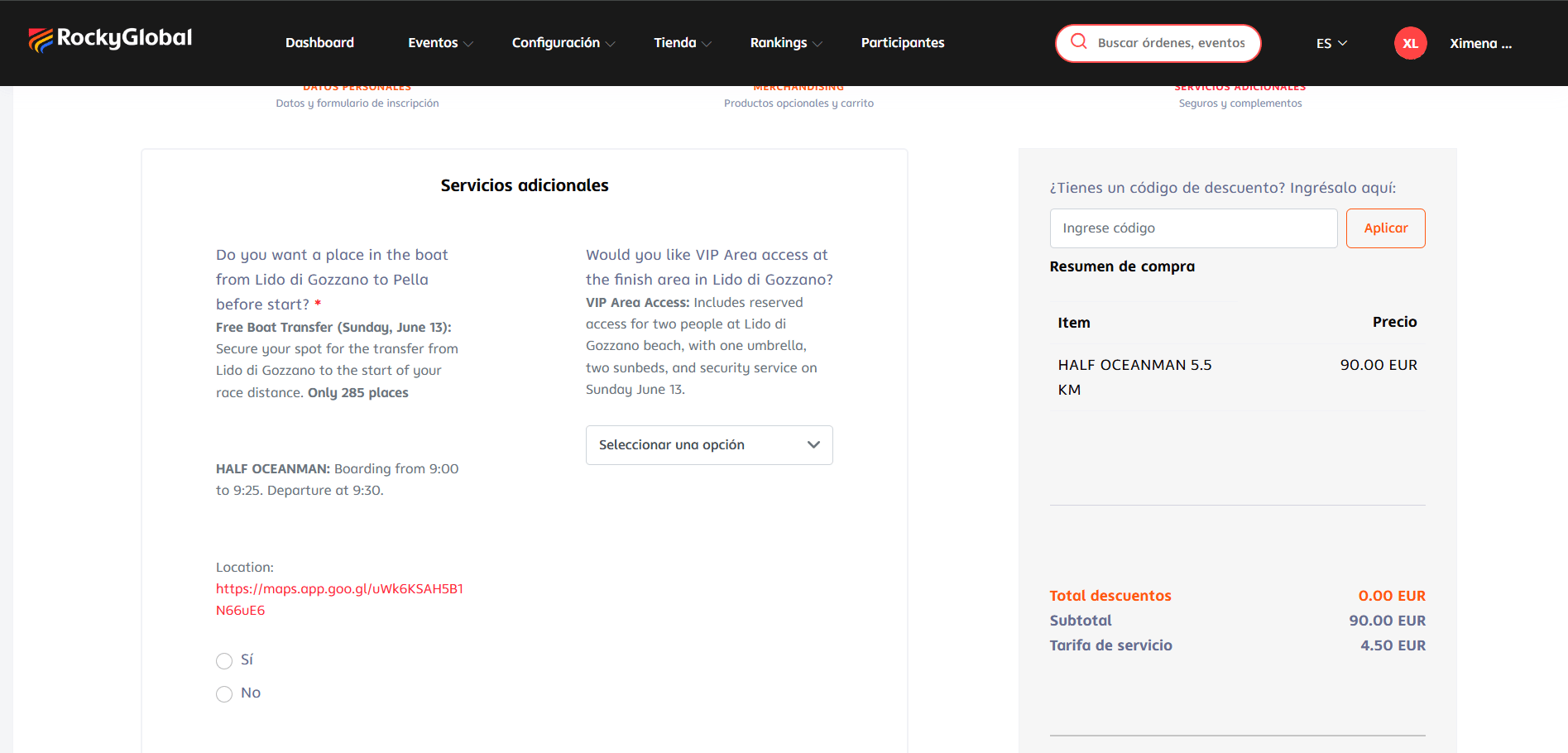 Cancellation insurance can only be purchased during this initial registration. It cannot be added later if you edit your registration afterward.
Once payment is confirmed:
* You receive the **receipt** and **registration number** by email.
* The registration becomes visible in [My Events](/en/roles/atleta/mis-inscripciones).
* If you didn't have an account, you're also sent an email to **set your password** for the account that was created automatically.
## Registration statuses
| Status | Description |
| ------------------- | ---------------------------------------------------------------------------------- |
| **Pending payment** | You've reserved your spot but payment is still incomplete. |
| **Confirmed** | Payment received. Your registration is valid. |
| **Canceled** | The registration was voided (by you, the organizer, or due to incomplete payment). |
## Changes to a registration
Depending on the organizer's policies, you may be able to:
* Change category (if space is still available).
* Update your size.
* Transfer the registration to another person.
Cancellation insurance can only be purchased during this initial registration. It cannot be added later if you edit your registration afterward.
Once payment is confirmed:
* You receive the **receipt** and **registration number** by email.
* The registration becomes visible in [My Events](/en/roles/atleta/mis-inscripciones).
* If you didn't have an account, you're also sent an email to **set your password** for the account that was created automatically.
## Registration statuses
| Status | Description |
| ------------------- | ---------------------------------------------------------------------------------- |
| **Pending payment** | You've reserved your spot but payment is still incomplete. |
| **Confirmed** | Payment received. Your registration is valid. |
| **Canceled** | The registration was voided (by you, the organizer, or due to incomplete payment). |
## Changes to a registration
Depending on the organizer's policies, you may be able to:
* Change category (if space is still available).
* Update your size.
* Transfer the registration to another person.
 Refunds are not requested directly on the platform: you must contact the organizer, who reviews and processes them according to their own policies. See [Payments and billing](/en/roles/atleta/pagos-facturacion).
Not all organizers allow changes or refunds. Check the rules before registering.
Refunds are not requested directly on the platform: you must contact the organizer, who reviews and processes them according to their own policies. See [Payments and billing](/en/roles/atleta/pagos-facturacion).
Not all organizers allow changes or refunds. Check the rules before registering.