> ## Documentation Index
> Fetch the complete documentation index at: https://docs.rocky.global/llms.txt
> Use this file to discover all available pages before exploring further.
# Discounts and codes
> Create coupons and automatic discounts for your events.
## Types of discount
A code the athlete enters when registering.
Activated automatically, without a code, for the first registrations or purchases until the quota you define runs out (a "first N slots" type).
Applied automatically based on the country of the athlete registering, without needing a code. Configured on a separate screen — see below.
If you need a free registration, you can achieve it by configuring a 100% discount.
## Create a discount code
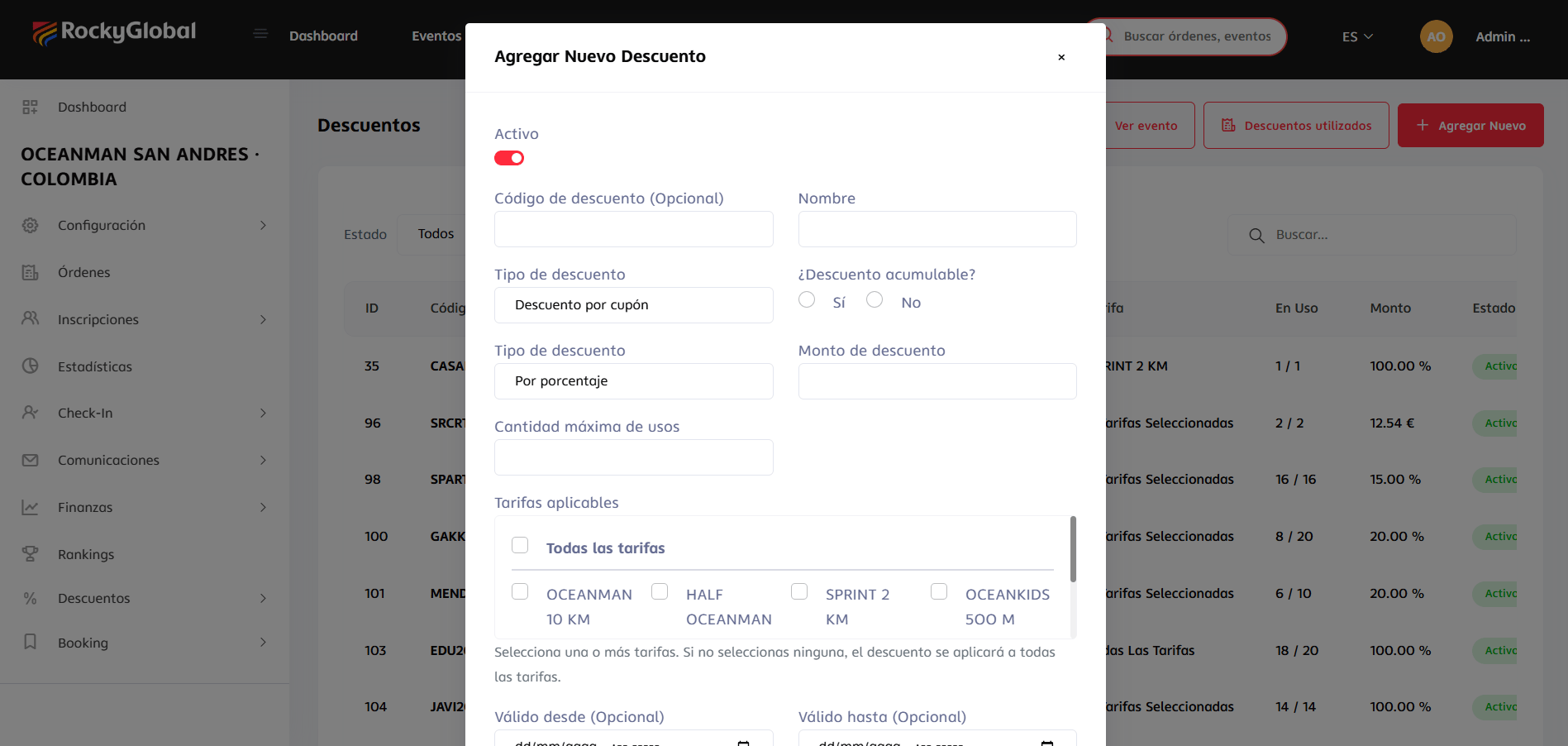
Inside the event panel, go to **Discounts → Manage Discounts** and click **Add New**.
This same form is used for both "Coupon discount" and "Tier discount" (chosen in **Discount Type**):
* **Active** (toggle).
* **Discount code** (optional — e.g. `RUNNER10`; leave it empty if it's a "tier" discount, which doesn't require a code).
* **Name.**
* **Discount type:** coupon or tier.
* **Stackable discount?** Yes/No.
* **Value type:** percentage or fixed amount.
* **Discount amount.**
* **Maximum number of uses** (for "tier" discounts, this is the quota that runs out).
* **Applicable fees:** select one or several, or none for it to apply to all fees.
* **Valid from / Valid until** (optional).
 If it's a code, share it through your channels (social media, email marketing, sponsors). If it's "tier"-based, it activates on its own until the quota runs out.
The usage limit is configured at the level of the code as a whole; we're evaluating adding a per-individual-user limit further down the road.
## Country bonuses
This is a different type of discount, with its own screen — it is **not** created from the form above, but from **Discounts → Country Bonuses**.
Inside the event panel, go to **Discounts → Country Bonuses** and click **Add bonus**.
If it's a code, share it through your channels (social media, email marketing, sponsors). If it's "tier"-based, it activates on its own until the quota runs out.
The usage limit is configured at the level of the code as a whole; we're evaluating adding a per-individual-user limit further down the road.
## Country bonuses
This is a different type of discount, with its own screen — it is **not** created from the form above, but from **Discounts → Country Bonuses**.
Inside the event panel, go to **Discounts → Country Bonuses** and click **Add bonus**.
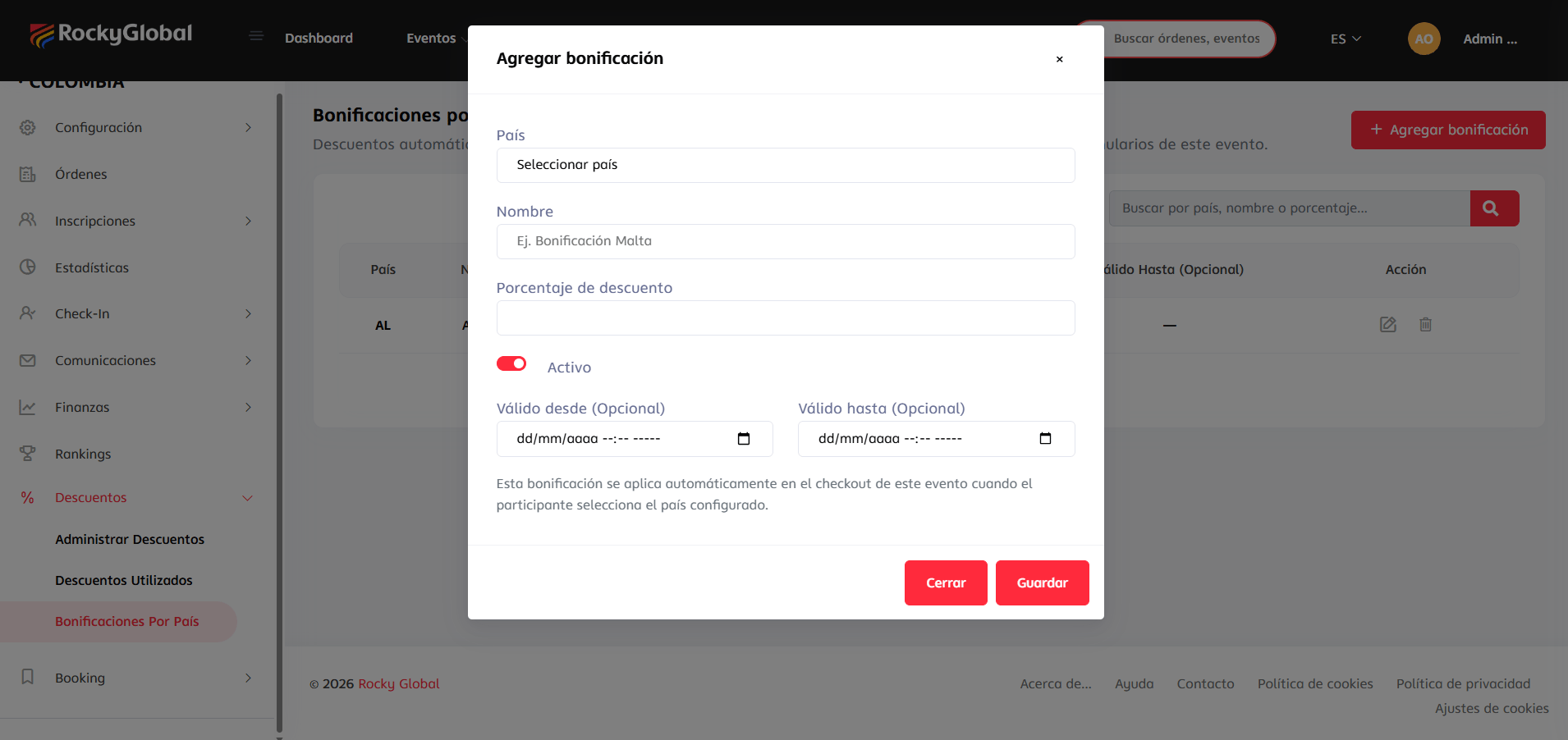 Select **one country** (not multi-select). There can only be one active bonus per country per event.
* **Name** (optional, e.g. "Malta Bonus").
* **Discount percentage** (0.01% to 100%).
* **Active** (toggle).
* **Valid from / Valid until**.
The bonus becomes active immediately for that country.
You can create several bonuses, one per country, each with its own percentage (for example 10% for one country and 15% for another).
The athlete's country is taken from the country field they fill in on the registration form (or the country saved in their account, if they're already logged in) — it is **not** detected by IP or by the payment card's country. It is applied automatically at checkout.
## Usage reports
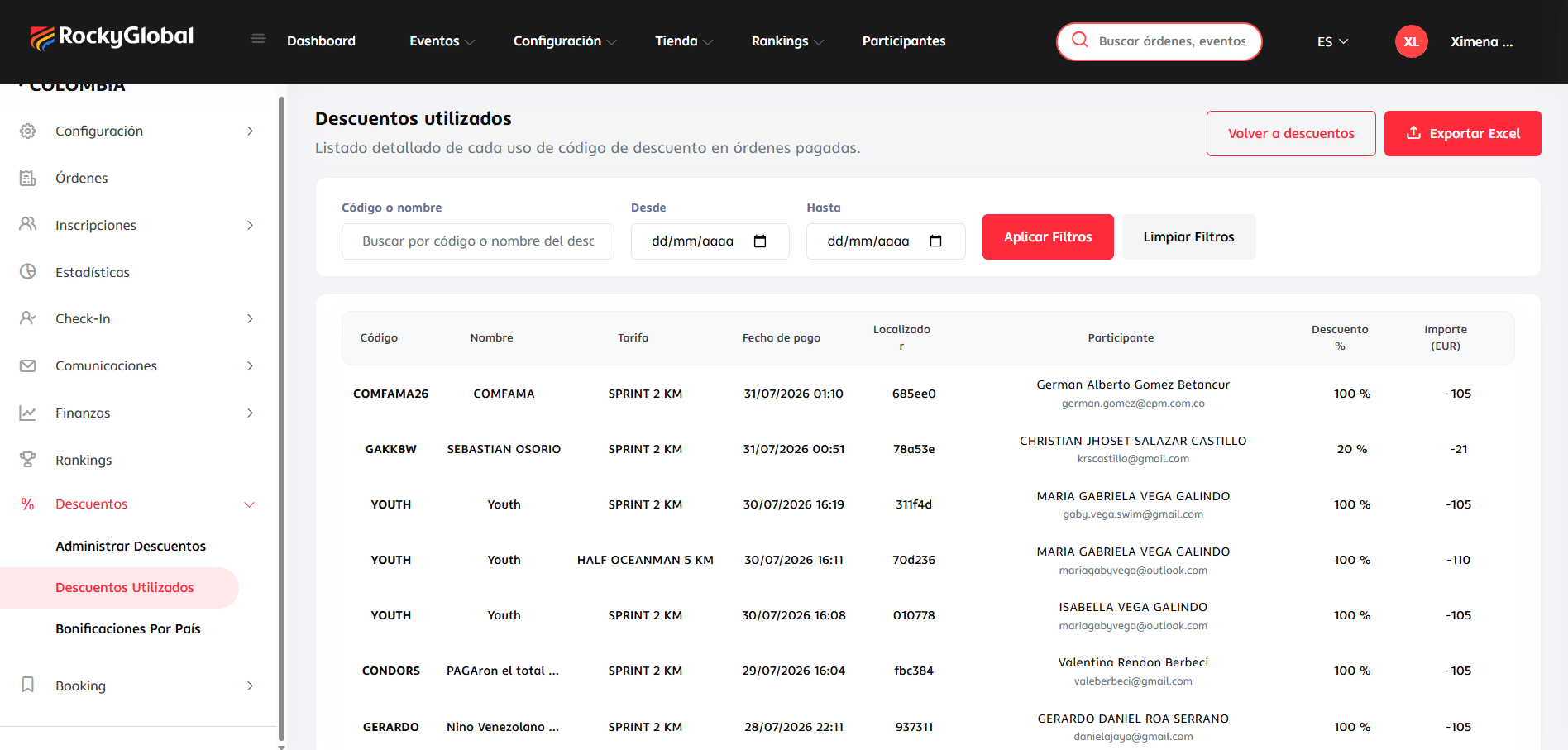
In **Discounts → Discounts Used** you'll see:
* Number of times each code was used.
* Total amount discounted.
* Associated registrations.
Select **one country** (not multi-select). There can only be one active bonus per country per event.
* **Name** (optional, e.g. "Malta Bonus").
* **Discount percentage** (0.01% to 100%).
* **Active** (toggle).
* **Valid from / Valid until**.
The bonus becomes active immediately for that country.
You can create several bonuses, one per country, each with its own percentage (for example 10% for one country and 15% for another).
The athlete's country is taken from the country field they fill in on the registration form (or the country saved in their account, if they're already logged in) — it is **not** detected by IP or by the payment card's country. It is applied automatically at checkout.
## Usage reports
In **Discounts → Discounts Used** you'll see:
* Number of times each code was used.
* Total amount discounted.
* Associated registrations.