> ## Documentation Index
> Fetch the complete documentation index at: https://docs.rocky.global/llms.txt
> Use this file to discover all available pages before exploring further.
# Finances and settlement
> Check your revenue, commissions, and request payment for your event.
## Financial panel
In **Finances → Dashboard**, within the event, you see in real time:
* **Total Revenue Received for the Event** (total payments received).
* **Total Event Taxes** (taxes applied).
* **Total Event Fee** (platform commission; the payment gateway's fee is not broken out separately).
* **Total Event Refunds** (refunds from fee changes, cancellations, etc.).
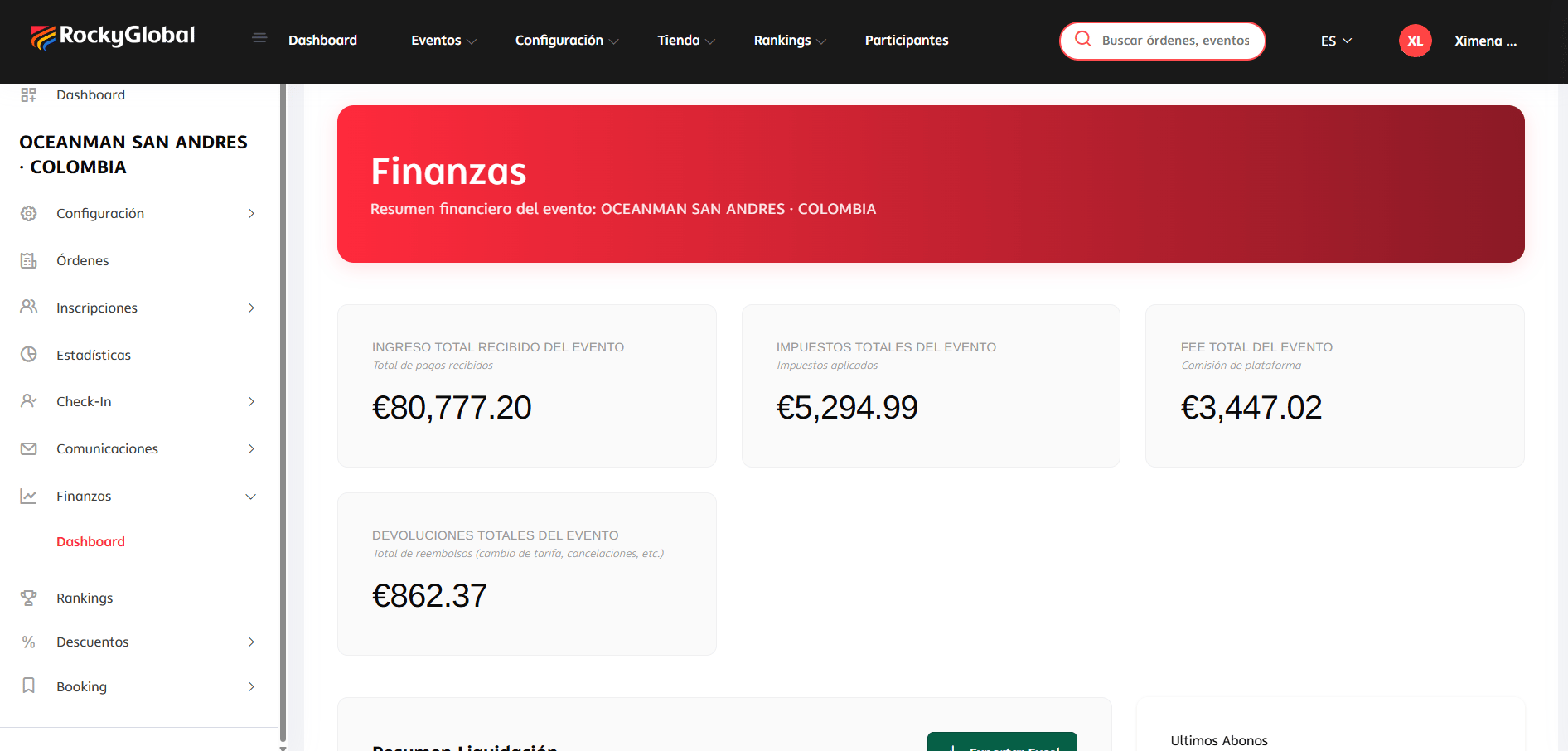 Further down you'll find the **Settlement Summary** (exportable to Excel) and the **Latest Payouts** made.
## Requesting your payment
Unlike an automatic cycle with a fixed periodicity, settlement on Rocky Global works **on demand**:
The financial panel calculates how much you have available to withdraw.
Generate a payout request. It stays in **pending** status.
The request must be approved before it's processed.
Once approved, it's transferred to your registered bank account.
## Orders (includes store sales)
In **Orders** you see the complete list of the event's transactions: registrations, store products, and hotel bookings together in a single order per purchase (checkout is unified). Store sales are viewed directly here, on the same orders screen, and in each order's detail you can view items, issue refunds, add notes, or resend the receipt by email.
## Refunds to athletes
You can refund the **full or partial** amount of an order from the Finances or Participants panel; the system refunds to the same original payment method.
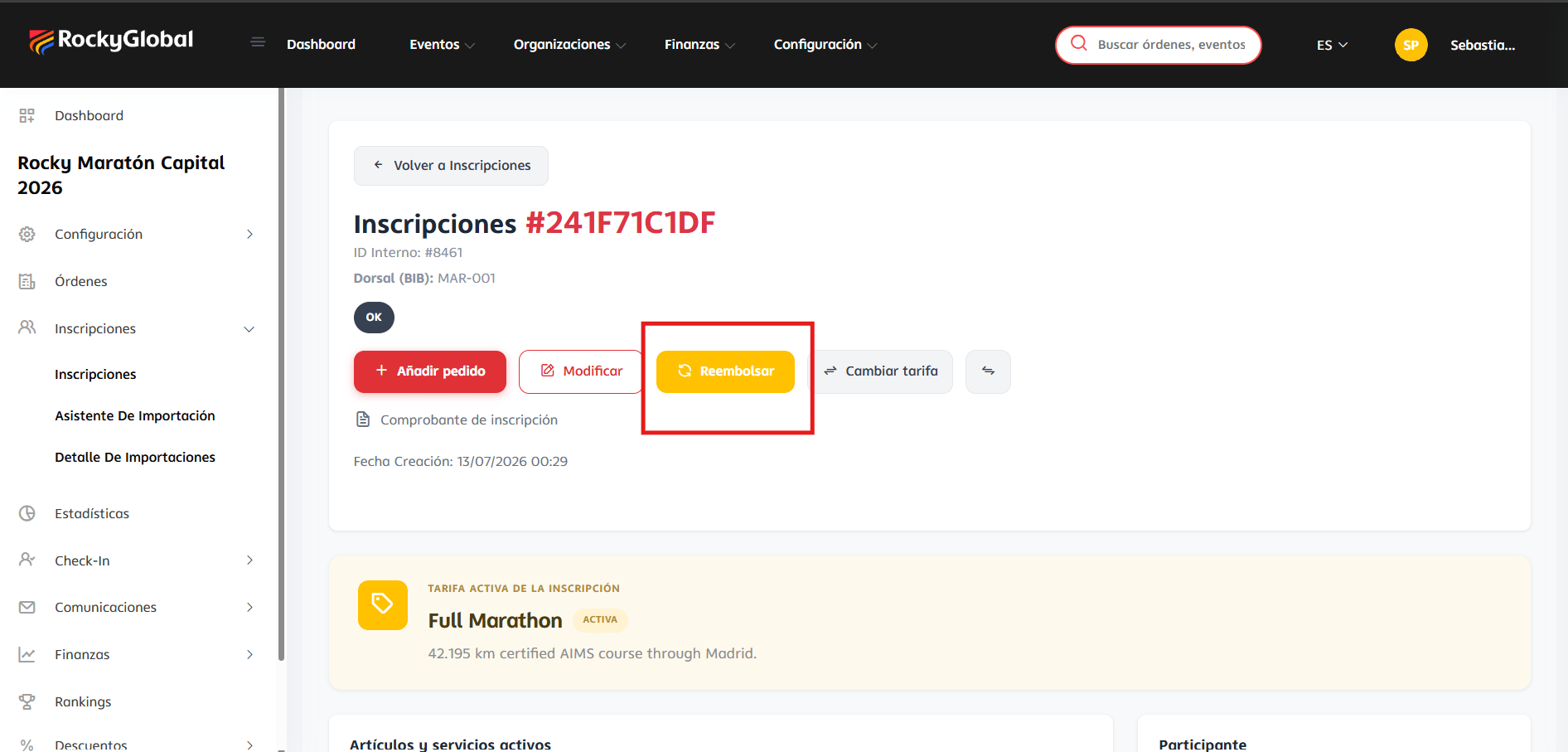
Find the participant and open their individual registration detail. On the associated order you'll see the **Refund** button (only visible if the registration has an order with a refundable balance and it isn't closed or already checked in with the kit delivered).
Further down you'll find the **Settlement Summary** (exportable to Excel) and the **Latest Payouts** made.
## Requesting your payment
Unlike an automatic cycle with a fixed periodicity, settlement on Rocky Global works **on demand**:
The financial panel calculates how much you have available to withdraw.
Generate a payout request. It stays in **pending** status.
The request must be approved before it's processed.
Once approved, it's transferred to your registered bank account.
## Orders (includes store sales)
In **Orders** you see the complete list of the event's transactions: registrations, store products, and hotel bookings together in a single order per purchase (checkout is unified). Store sales are viewed directly here, on the same orders screen, and in each order's detail you can view items, issue refunds, add notes, or resend the receipt by email.
## Refunds to athletes
You can refund the **full or partial** amount of an order from the Finances or Participants panel; the system refunds to the same original payment method.
Find the participant and open their individual registration detail. On the associated order you'll see the **Refund** button (only visible if the registration has an order with a refundable balance and it isn't closed or already checked in with the kit delivered).
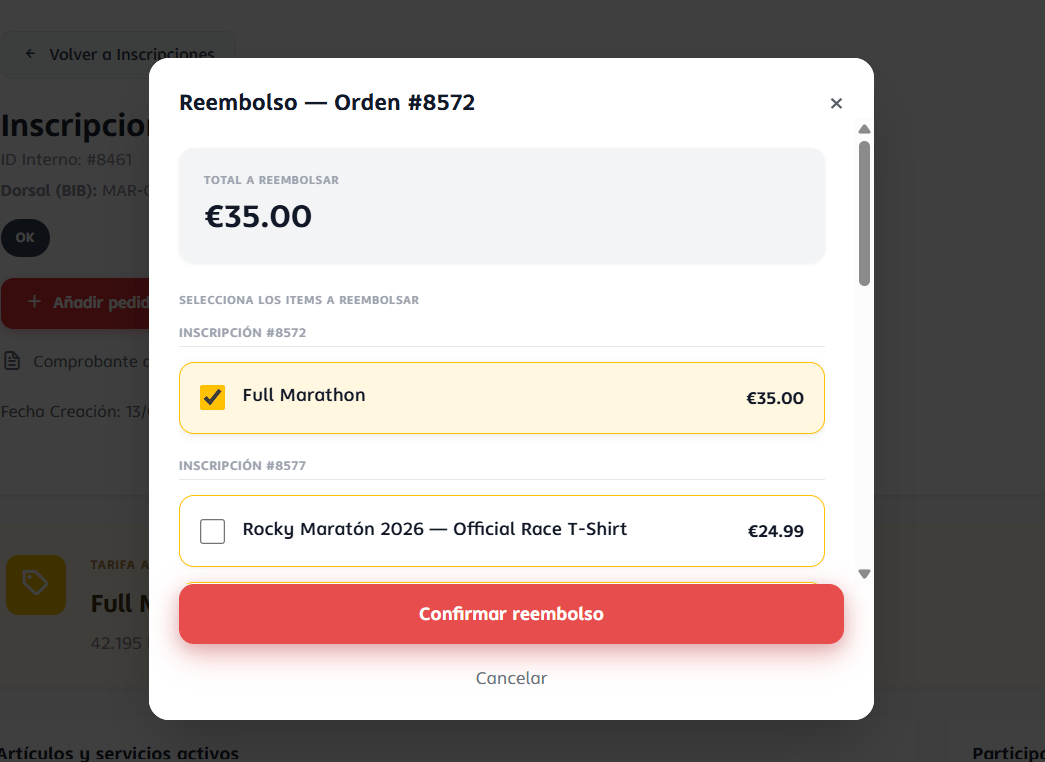
 A modal opens where you can:
* Check the **items to refund** (each with its amount) or enter a **custom amount**.
* Choose the **refund type**: return the money to the original payment method, or generate a **discount code** for that value.
* Optionally check **cancel registration** together with the refund.
* Optionally check (enabled by default) whether to **notify the athlete by email**.
A modal opens where you can:
* Check the **items to refund** (each with its amount) or enter a **custom amount**.
* Choose the **refund type**: return the money to the original payment method, or generate a **discount code** for that value.
* Optionally check **cancel registration** together with the refund.
* Optionally check (enabled by default) whether to **notify the athlete by email**.
 Once confirmed, the refund is recorded in the registration's and the order's history.
Refunds can take several business days to appear, depending on the card-issuing bank — this timing is set by the bank, not the platform.
See [commissions and fees](/en/features/ORGANIZER_FEES_DOCUMENTATION) for the current rates.
Once confirmed, the refund is recorded in the registration's and the order's history.
Refunds can take several business days to appear, depending on the card-issuing bank — this timing is set by the bank, not the platform.
See [commissions and fees](/en/features/ORGANIZER_FEES_DOCUMENTATION) for the current rates.