> ## Documentation Index
> Fetch the complete documentation index at: https://docs.rocky.global/llms.txt
> Use this file to discover all available pages before exploring further.
# Reports and exports
> Download participant lists, sales, and financial reports.
## Dashboard
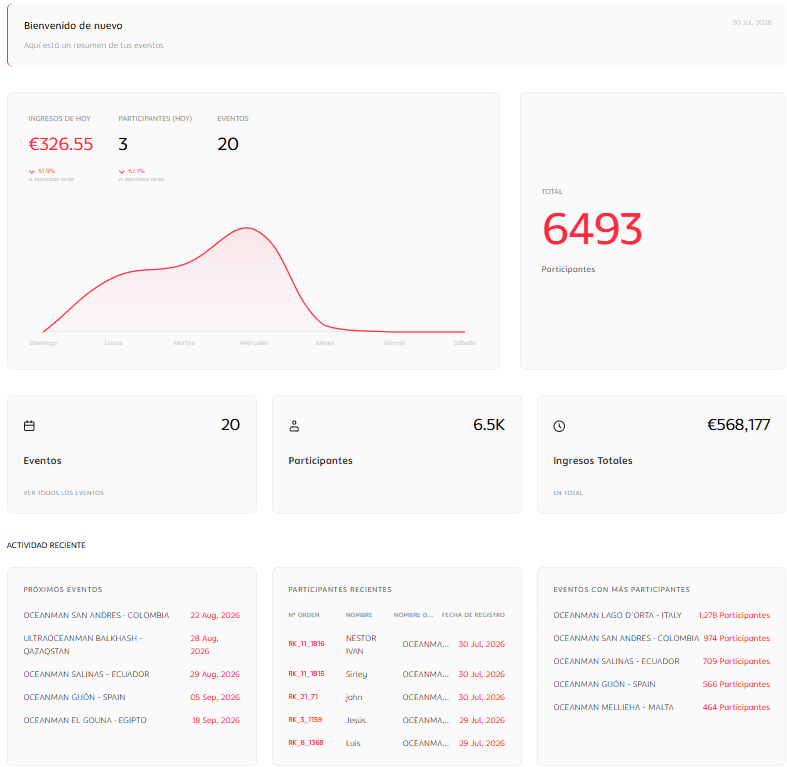
When you enter the platform (**Dashboard** in the main menu), you see an overall summary of your entire organization:
* **Today's revenue**, **Participants (today)**, and **Events**, each with the percentage change compared to the previous day.
* A chart of participants for the last week (Sunday to Saturday).
* **Total participants** accumulated.
* **Events**, **Participants**, and **Total Revenue** cards.
* **Recent activity**, in three columns: **Upcoming events** (with date), **Recent participants** (order number, name, event, registration date), and **Events with the most participants**.
 ## Available reports
All registrants with their complete data.
Codes used and amount discounted.
Revenue, commissions, and net settlement.
Full event statistics panel (see detail below).
## Event statistics
Within the event, the statistics panel offers quite a bit more than store sales:
* **Summary (dashboard):** total registrants, unique countries, amount sold in store/hotel/additional services, and mini-charts of the most frequent countries, fees, registration source, and payment methods.
* **Demographics:** distribution of registrants by country, nationality, gender, and age.
* **By fee and by category:** how many registrants are in each one.
* **By club:** distribution of registrants by club.
* **By registration source:** online, imported, or manual.
* **By payment method.**
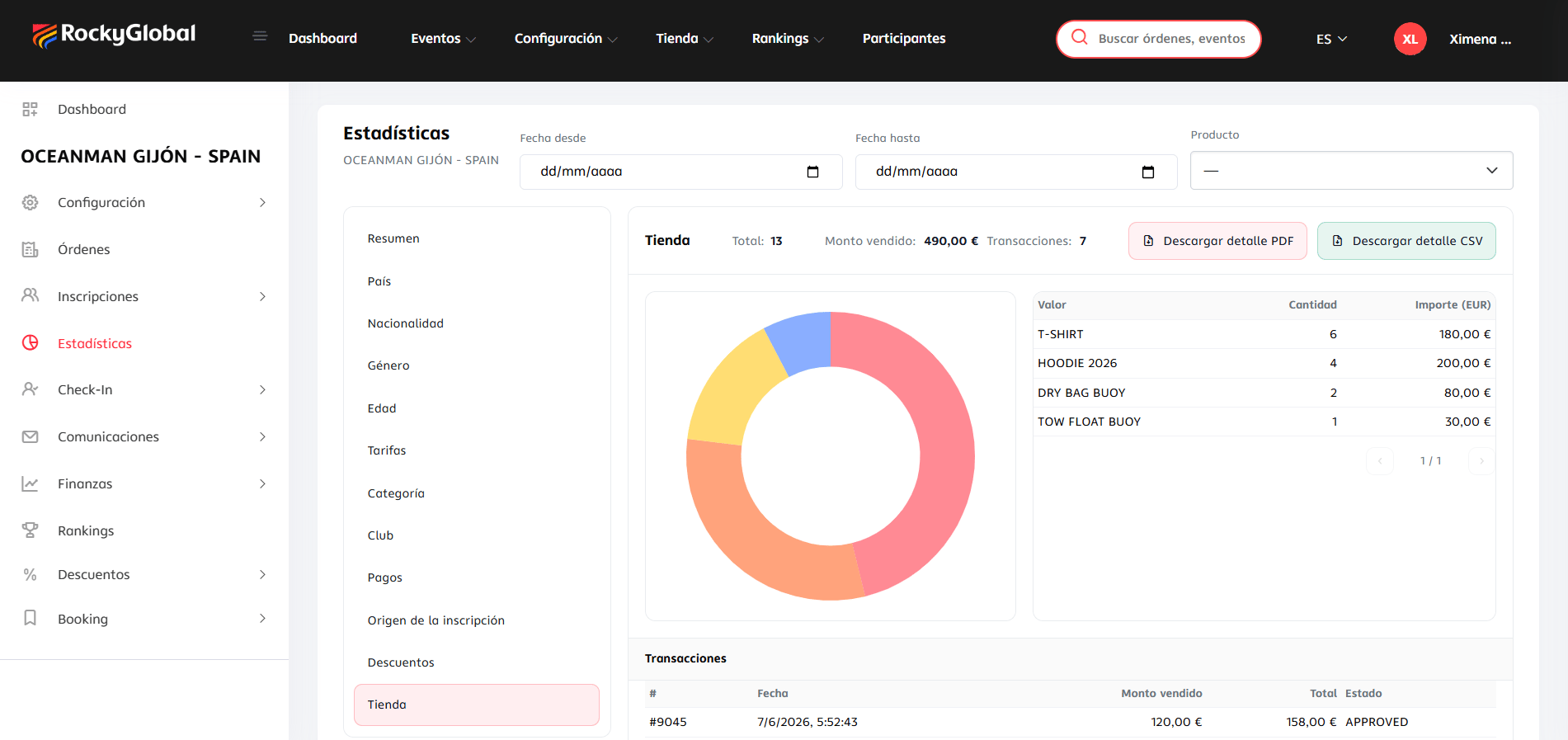
* **Store and hotel/booking:** sales by product or variant, with the detail of each transaction.
* **Additional services:** usage of "amount"-type add-ons from the registration form (for example, cancellation insurance).
* **Discounts:** coupon usage, approximate savings, and the most-used discount, filterable by type (fee, store, hotel, services).
Each metric is filtered by date range and, in the Store section, also by product. It shows the total, amount sold, and number of transactions, with a chart and the detail of each transaction (date, amount, total, status).
## Available reports
All registrants with their complete data.
Codes used and amount discounted.
Revenue, commissions, and net settlement.
Full event statistics panel (see detail below).
## Event statistics
Within the event, the statistics panel offers quite a bit more than store sales:
* **Summary (dashboard):** total registrants, unique countries, amount sold in store/hotel/additional services, and mini-charts of the most frequent countries, fees, registration source, and payment methods.
* **Demographics:** distribution of registrants by country, nationality, gender, and age.
* **By fee and by category:** how many registrants are in each one.
* **By club:** distribution of registrants by club.
* **By registration source:** online, imported, or manual.
* **By payment method.**
* **Store and hotel/booking:** sales by product or variant, with the detail of each transaction.
* **Additional services:** usage of "amount"-type add-ons from the registration form (for example, cancellation insurance).
* **Discounts:** coupon usage, approximate savings, and the most-used discount, filterable by type (fee, store, hotel, services).
Each metric is filtered by date range and, in the Store section, also by product. It shows the total, amount sold, and number of transactions, with a chart and the detail of each transaction (date, amount, total, status).
 ## How to export a report
Select the report you need within the event.
Participant, discount, and finance reports are exported in **Excel (.xlsx)**. The **Statistics** panel is the exception: each of its metrics (summary, country, gender, age, fees, category, club, payments, source, discounts, store, hotel, additional services) can be downloaded as **PDF** or **CSV**, with transaction details included.
For the participant list, if the file is large, it's generated in the background and you'll receive an email with the download link.
## How to export a report
Select the report you need within the event.
Participant, discount, and finance reports are exported in **Excel (.xlsx)**. The **Statistics** panel is the exception: each of its metrics (summary, country, gender, age, fees, category, club, payments, source, discounts, store, hotel, additional services) can be downloaded as **PDF** or **CSV**, with transaction details included.
For the participant list, if the file is large, it's generated in the background and you'll receive an email with the download link.