
How your account is created
In Rocky Global there is no separate “Sign Up” screen. Your account is created automatically as part of the event registration process, using the email you enter in the registration form.1
Choose an event and start your registration
Find the event you want to participate in and start the registration process. See how to register.
2
Complete the personal information form
If you haven’t logged in, fill in your details (first name, last name, email, phone, etc.) in the Personal Information step of the registration wizard. You are not asked to create a password at this point.
3
Finish the registration and pay
Once payment is completed, if the email you used didn’t match any existing account, Rocky Global creates your account automatically with that email.
4
Set your password
You’ll receive a welcome email with a link to set your password. Use that link to define your password so you can log in later.
Requirements
- Be of legal age, or have authorization from your legal guardian.
- Have a valid email address you can access permanently: all official event communications (bib number, results, changes) and the link to set your password are sent to this email.
- An identity document (for events that require it).
Common issues
I didn't receive the email to set my password
I didn't receive the email to set my password
Check your spam or junk folder. If you still don’t see it, contact support so they can resend the link.
I forgot my password
I forgot my password
1
Click 'Forgot your password?'
On the login screen, below the password field, click the Forgot your password? link.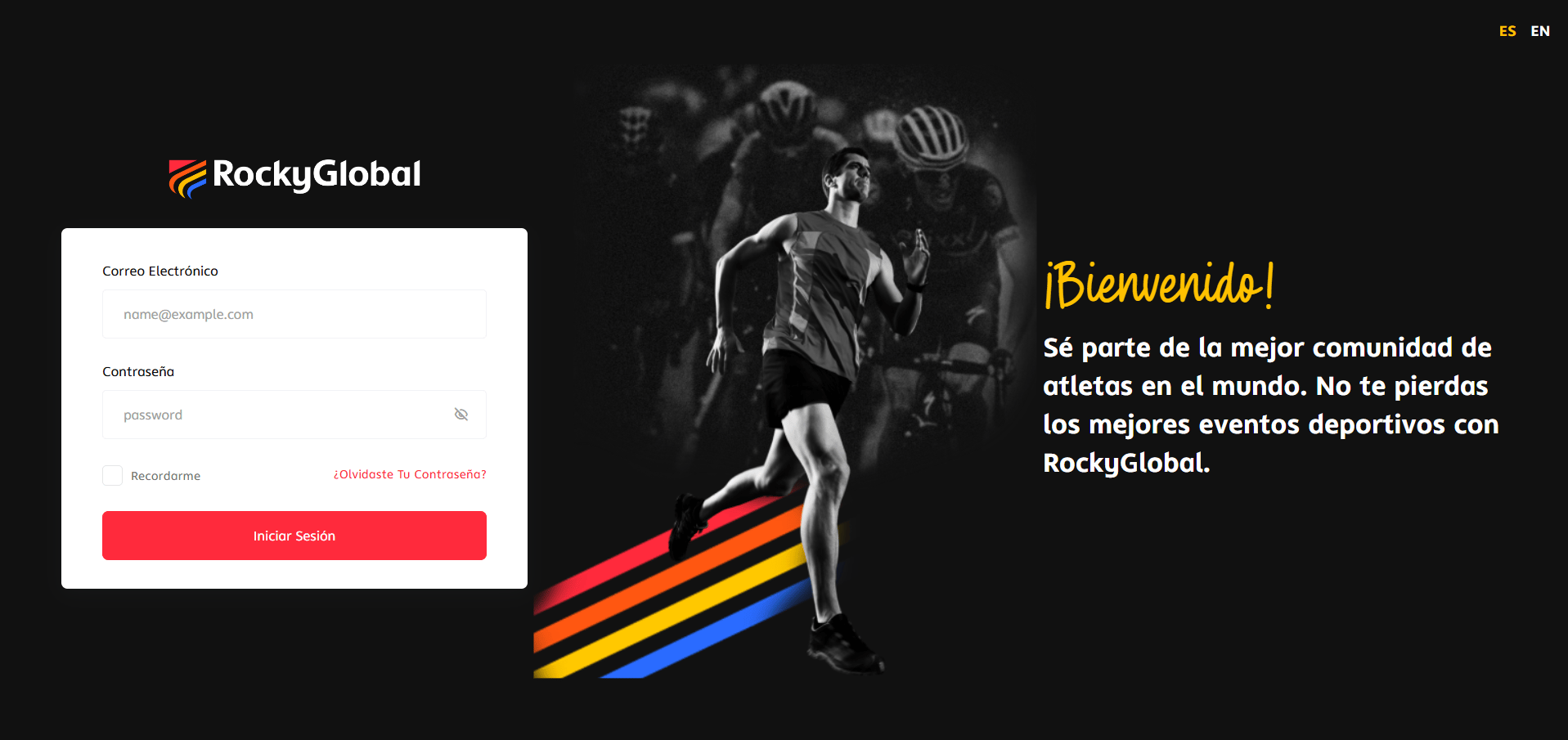
2
Enter your email
Type the email you registered with and click Reset password. You’ll see a notice confirming that the email was sent.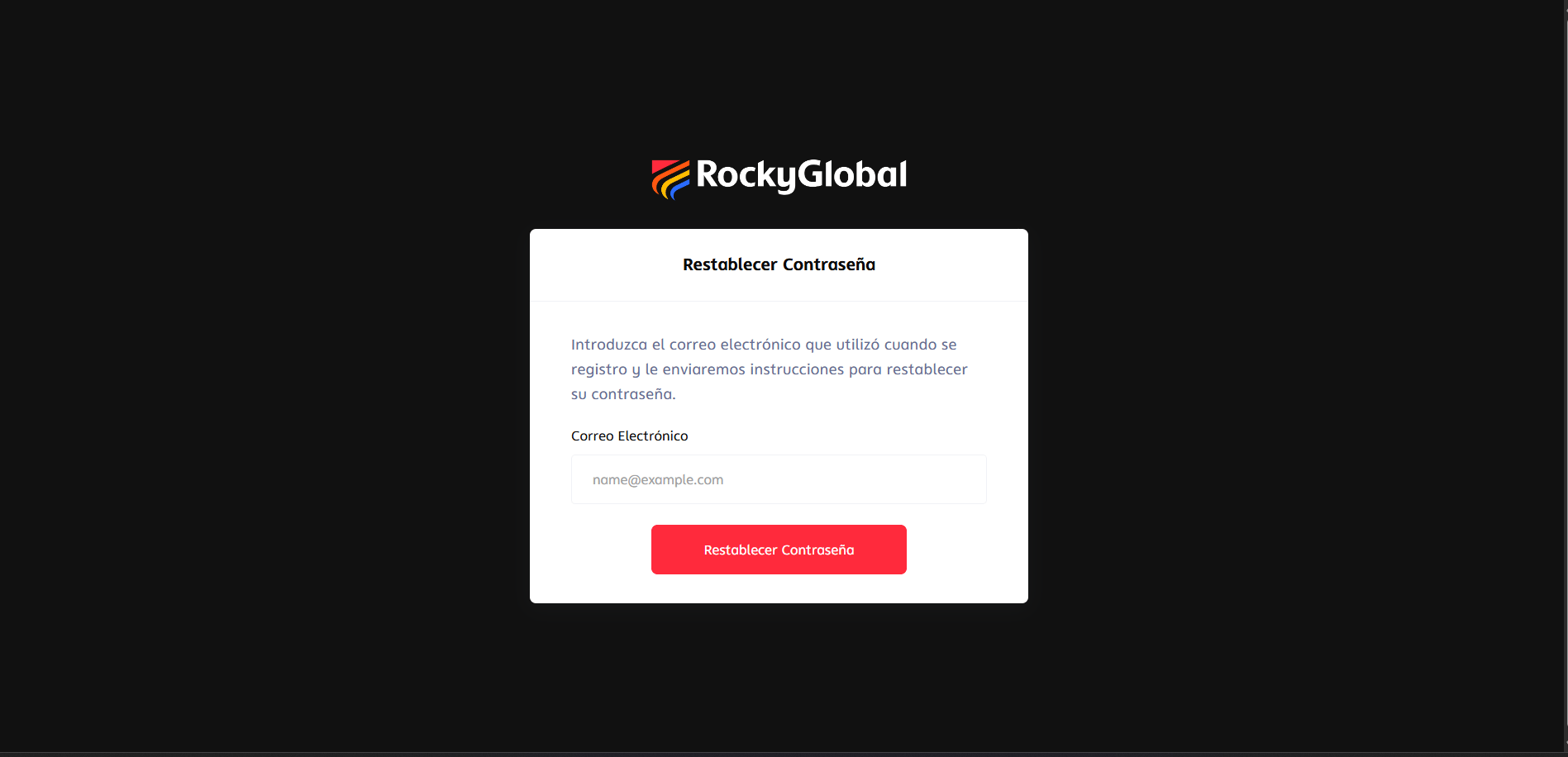
3
Open the email and set your new password
Check your inbox and click the Reset password button in the email you received. The link is valid for 60 minutes. A form will open for you to enter and confirm your new password.
4
Done, you're logged in
After saving the new password, the platform logs you in automatically.
I have an account but don't remember which email I registered with
I have an account but don't remember which email I registered with
Contact support with your identity document and we’ll help you recover access.
Can I create my account without registering for an event?
Can I create my account without registering for an event?
For now, the way to create your account is through the event registration process; we’re evaluating adding other ways to register.