
Register athletes screen. There you build one order with all the athletes you want to register under the same rate. There are two ways to load them.
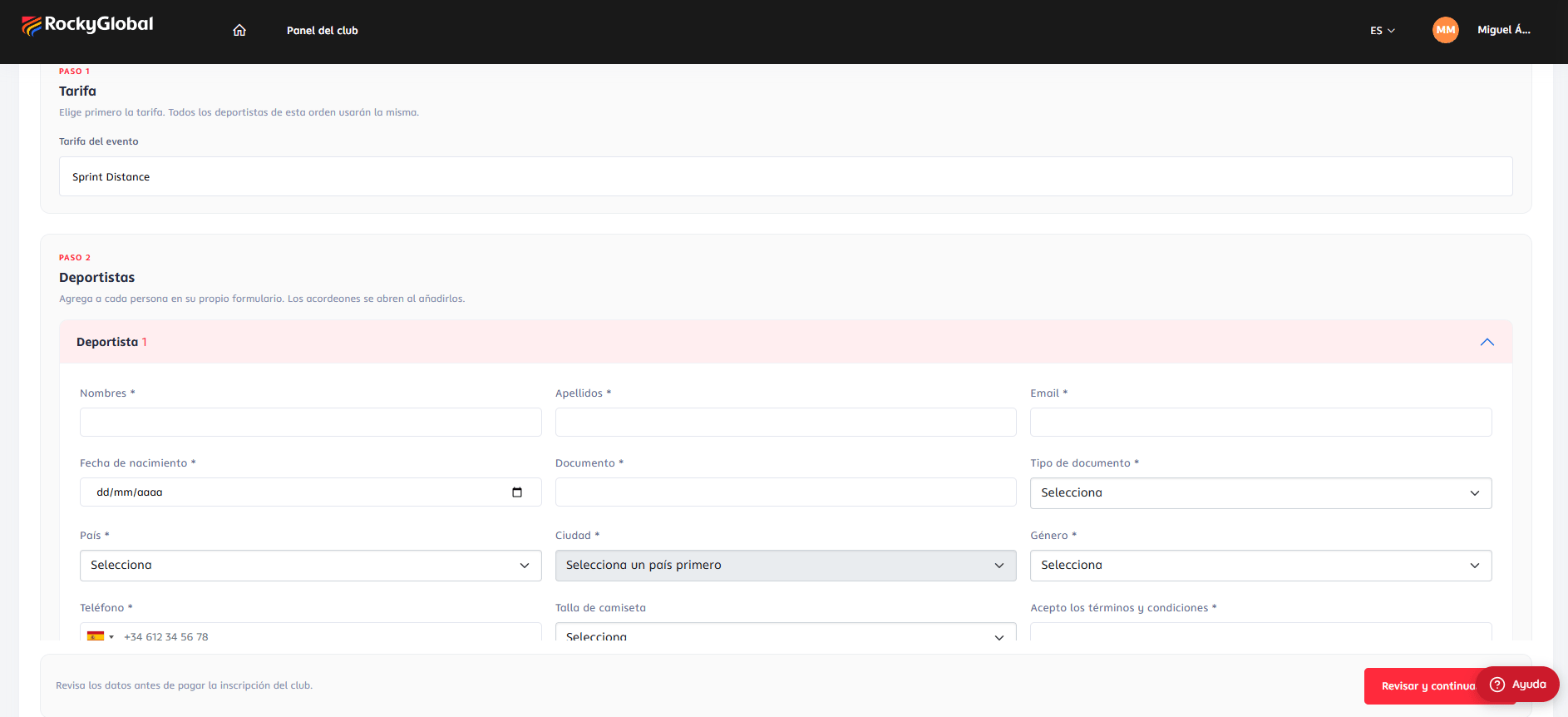
Manual form
1
Step 1 — Choose the rate
Pick the event rate. Every athlete in the order uses the same one. Only the event’s active rates appear.
2
Step 2 — Add the athletes
Choosing the rate loads the event’s form. Press Add athlete: each person has their own accordion. Repeat until everyone is in.
3
Review and continue
Press Review and continue. The system validates the data; if something fails, it highlights that athlete’s row.
4
Confirm the summary
A window “Review the registration before paying” shows the athletes and the purchase summary. From there you can apply a discount code, choose the payment method and press Confirm and pay (or Edit to go back).
Excel import
Use the quick option on the same screen: choose the rate, press Download template, fill it in, drop the file (.xlsx/.xls, up to 5 MB) and press Upload and review.
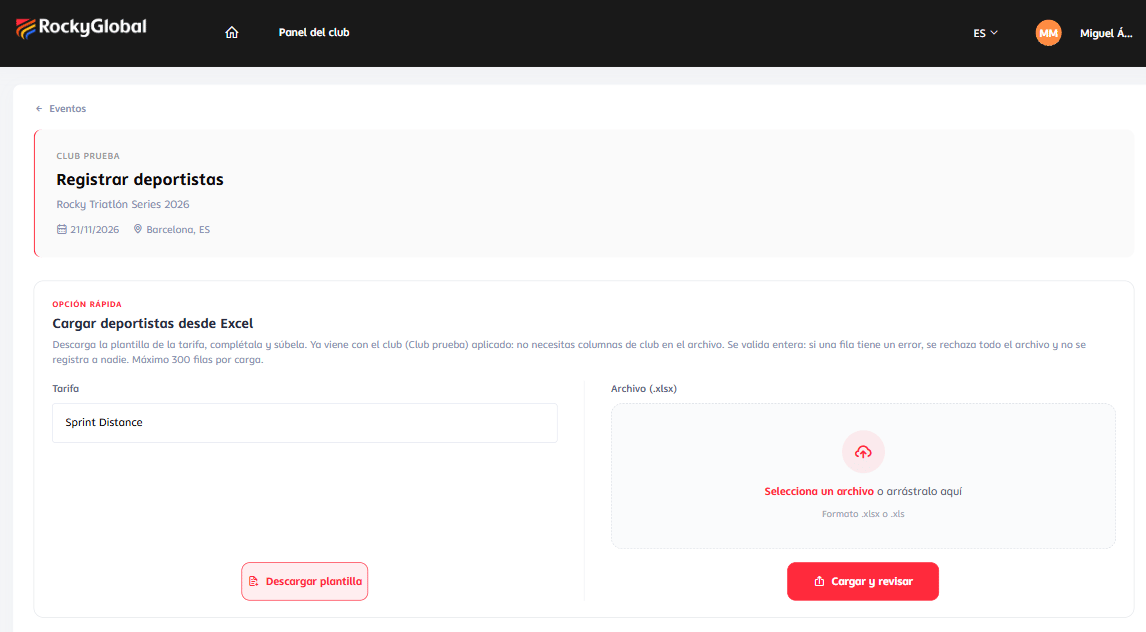
- The template is the one the organizer uses to import participants, scoped to the rate and without the columns the portal fills in (club membership, club name/email, and team name on individual rates).
- Maximum 300 data rows per upload. Split larger lists into several orders.
- The file is validated as a whole: if a single row has an error, the whole file is rejected and nobody is registered (“No athlete was registered”), listing “Data row N: …”.
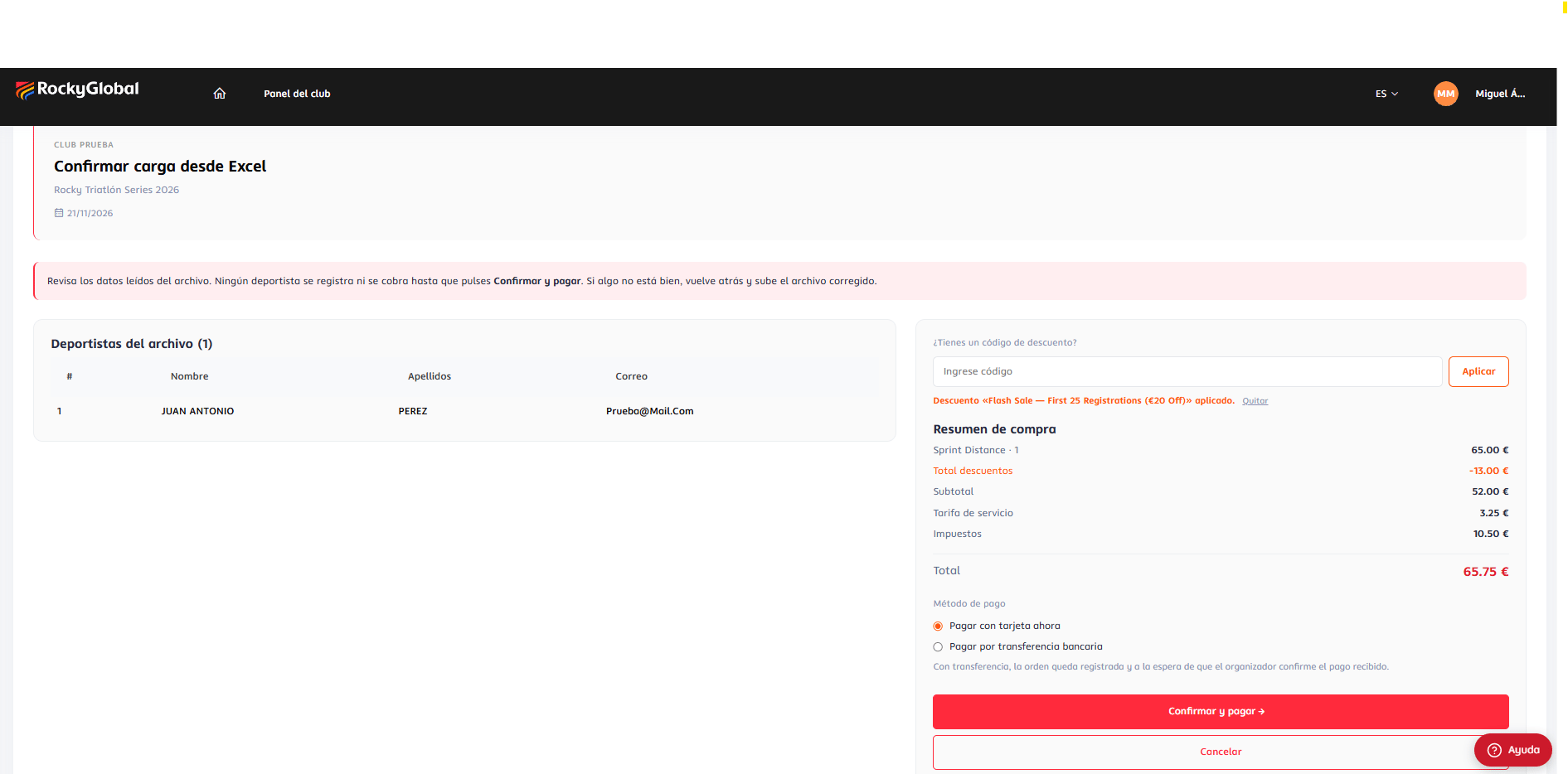
- If it passes, Confirm upload from Excel shows the athletes read, the discount box and the purchase summary. Nothing is registered or charged until you press Confirm and pay. The data is kept in your session; if it expires you must upload the file again.
- Confirming goes through the same validations and price calculation as the manual form.
Discounts
Club orders use the same discount engine as the public checkout; discounts are configured by the event’s organizer.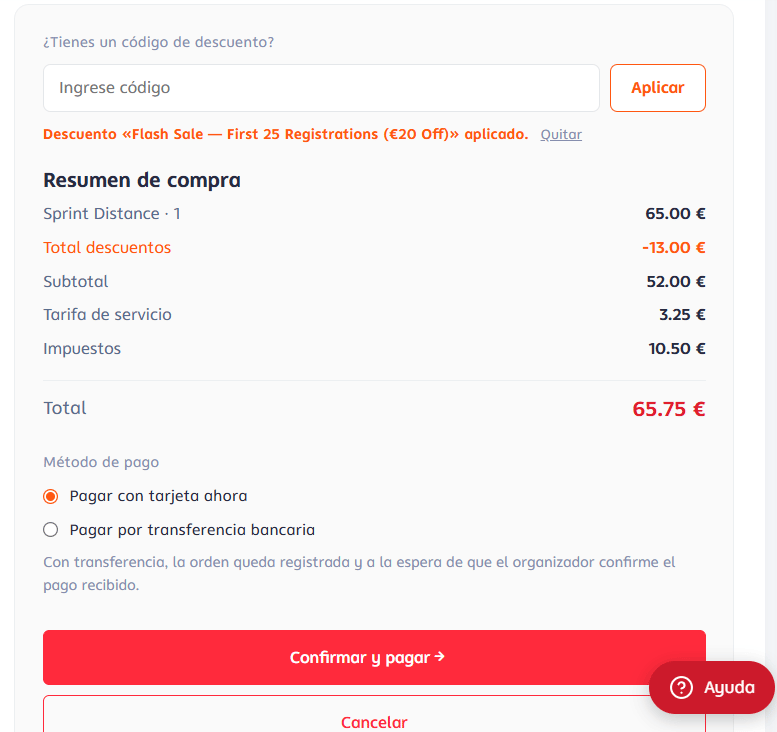
Combining. Order of application: turn → country → code. A non-combinable discount on either side of a turn + code pairing rejects the code. The per-country discount is not applied when a code is entered.
Service fee. A normal discount only reduces the order value, not the organizer’s service fee. Free codes and 100% discounts zero the total including the service fee.
Usage counting. The use of a code is counted when a free order is created, when a card payment is confirmed, or when the organizer approves a transfer.