Categories
Categories are configured from Settings → Forms, in the draggable “Category” field of the basic questions section. This opens the Configure Categories modal.1
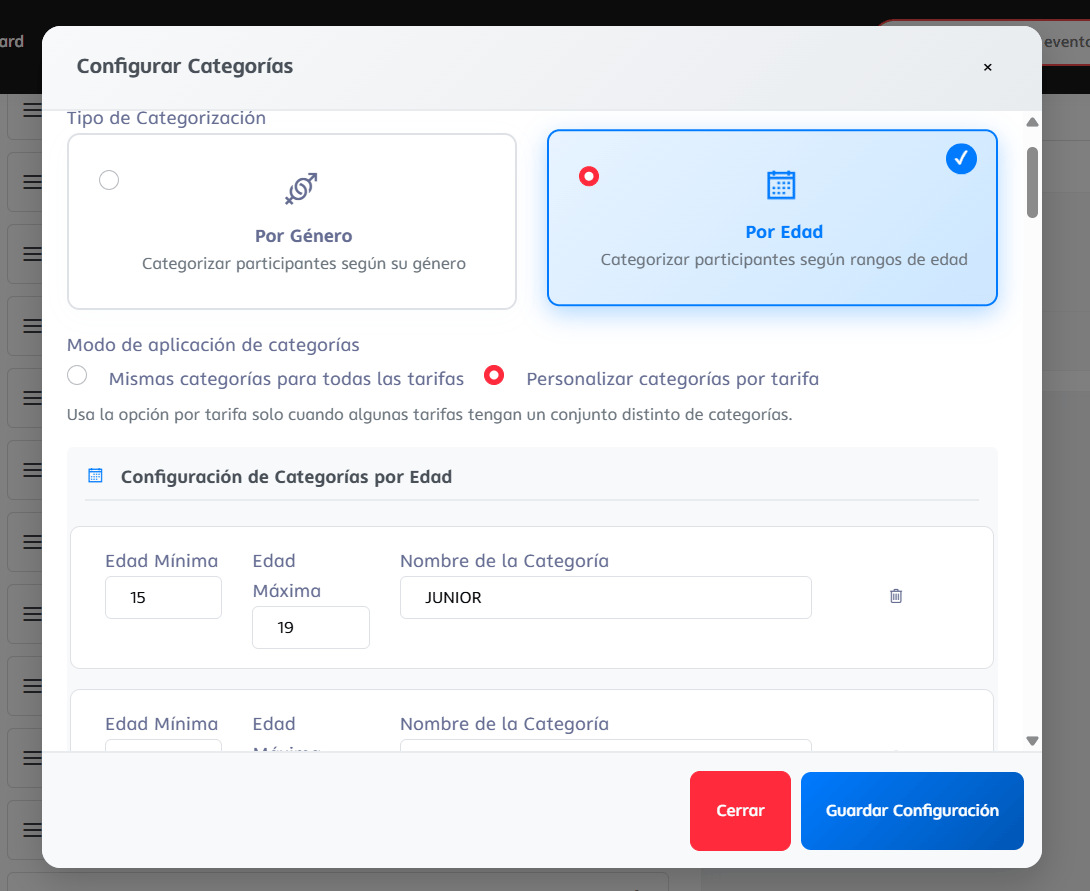
Choose the categorization type
Choose one of the two, they are mutually exclusive (you can’t combine them in the same field):
- By Gender: classifies each participant according to one of these options: Male, Female, Mixed, Other, or Open (no restriction).
-
By Age: define rows with Minimum Age, Maximum Age, and Category Name (for example, “JUNIOR” 15-19). The system automatically calculates which one each athlete falls into based on their date of birth.
2
Choose the application mode
- Same categories for all fees (default), or
- Customize categories per fee, to mark which categories are available in each specific fee.
3
Save the configuration
Click Save Configuration.
Pricing schedule
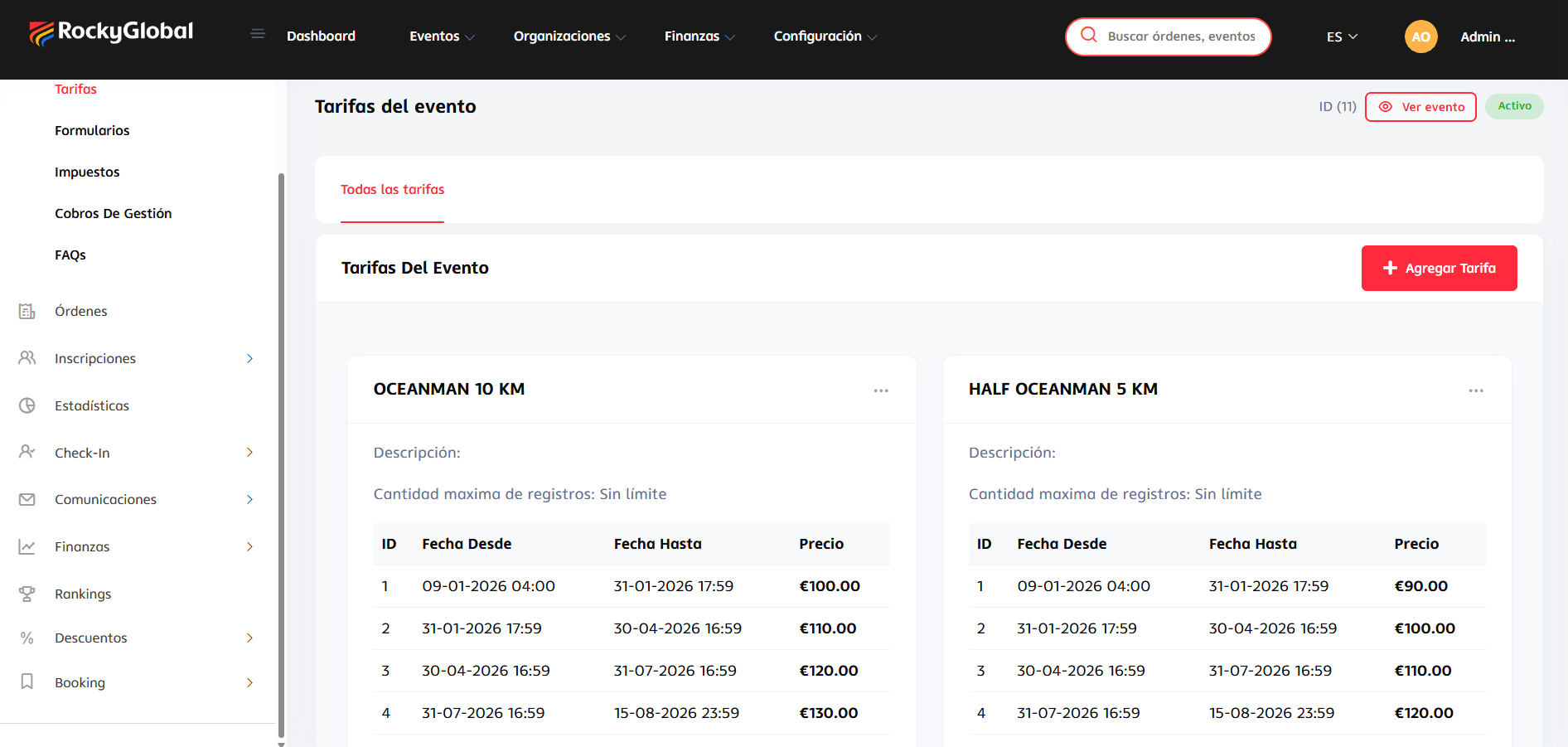
You can configure fees by period to encourage early registrations. Each tier has a start date, end date, and price, with a name you define.The system forces the currency to euros (EUR) for all fees, regardless of the event’s country.
Configure fees
- In the event panel, go to Settings → Fees.
- Add each phase with: name, start date, end date, and price.
- Define the maximum capacity for that fee (actual capacity is controlled per fee, not per category).
- Save. The system will automatically apply the current price at the time of registration.