
What can you sell?
- Commemorative t-shirts and apparel.
- Additional medals and trophies.
- Kits for companions.
- Professional photographs.
- Sponsor products.
Catalogs
Products aren’t created loosely for a single event: they’re grouped into catalogs that belong to your organization (not to a specific event). The same catalog can be assigned to several of your events at once, letting you reuse the same set of products (for example, the same t-shirt line) across different editions without having to upload them again.1
Create a catalog
Go to Store → Catalogs and define Catalog name, Associated events (which of your events it applies to), and mark it Active.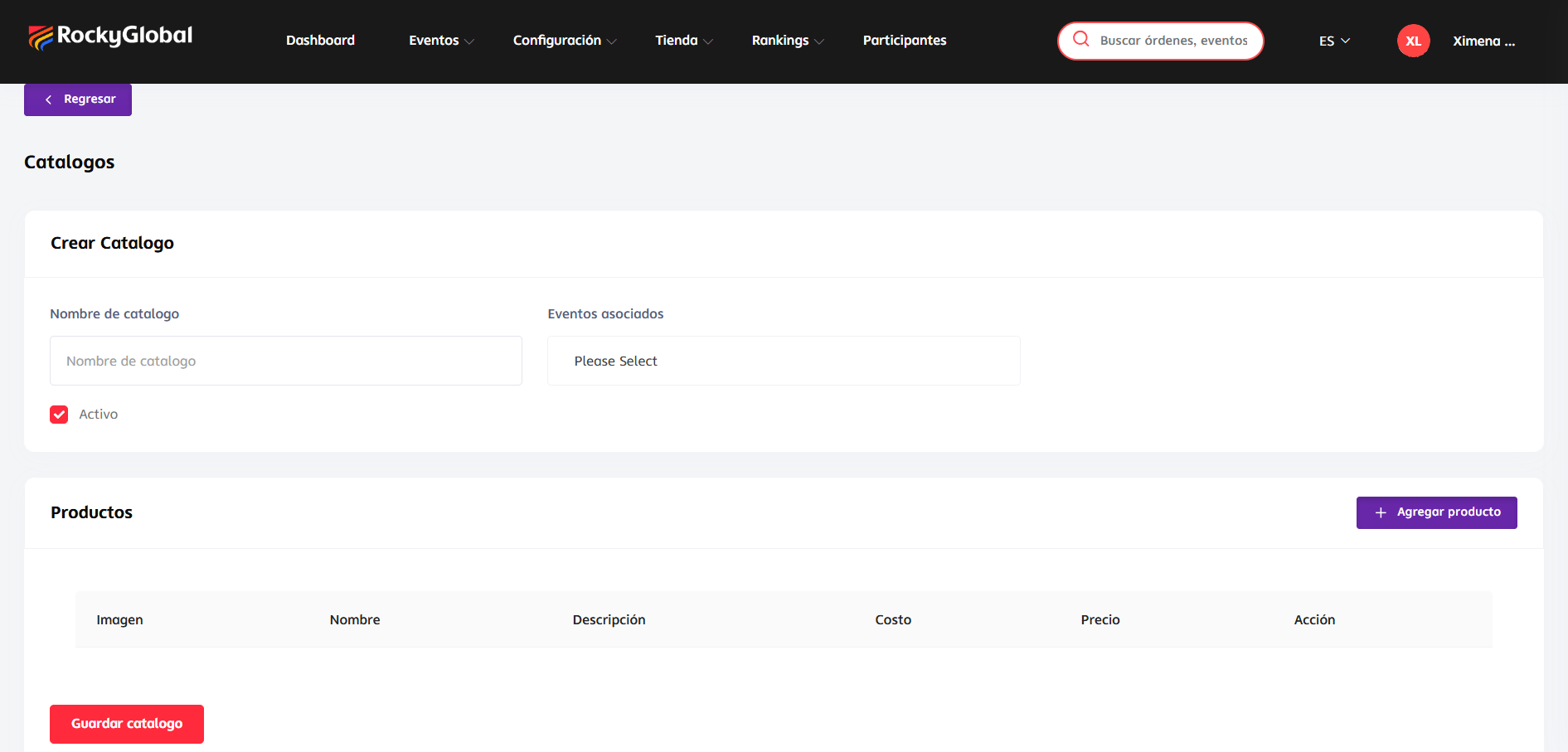
2
Add products to the catalog
Within that same screen, in the Products section, click Add product.
3
Save the catalog
Click Save catalog.
Assigning a product to a catalog is optional: a product can exist without an assigned catalog.
Add a product
1
Open 'Create Product'
From the catalog screen, click Add product.
2
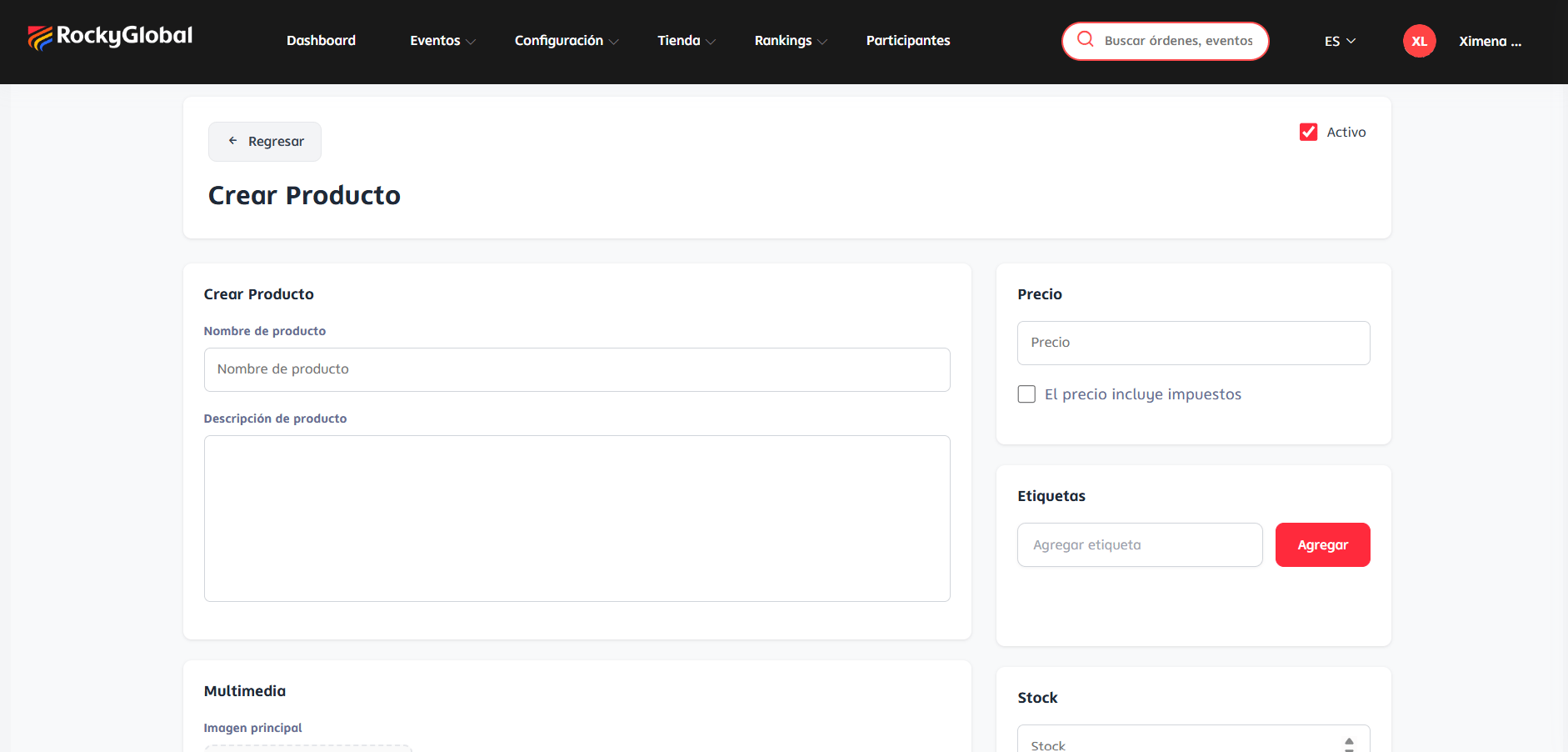
Fill in the details
- Product name and description.
- Price, with an optional Price includes taxes checkbox.
- Tags (optional).
- Media: main image.
-
Stock (or variants with their own stock, if the product has size/color).
3
Publish
Mark the product as Active so it appears in the store.
Inventory
The system automatically deducts inventory when a product is sold (if you have stock control enabled for that product).For now, tracking low or out-of-stock inventory is done by checking it manually; we’re working on adding automatic alerts for these cases.
Products alongside registration
You can offer products to be purchased during the registration process, in addition to open sales in the event’s public store. See Registering for an event.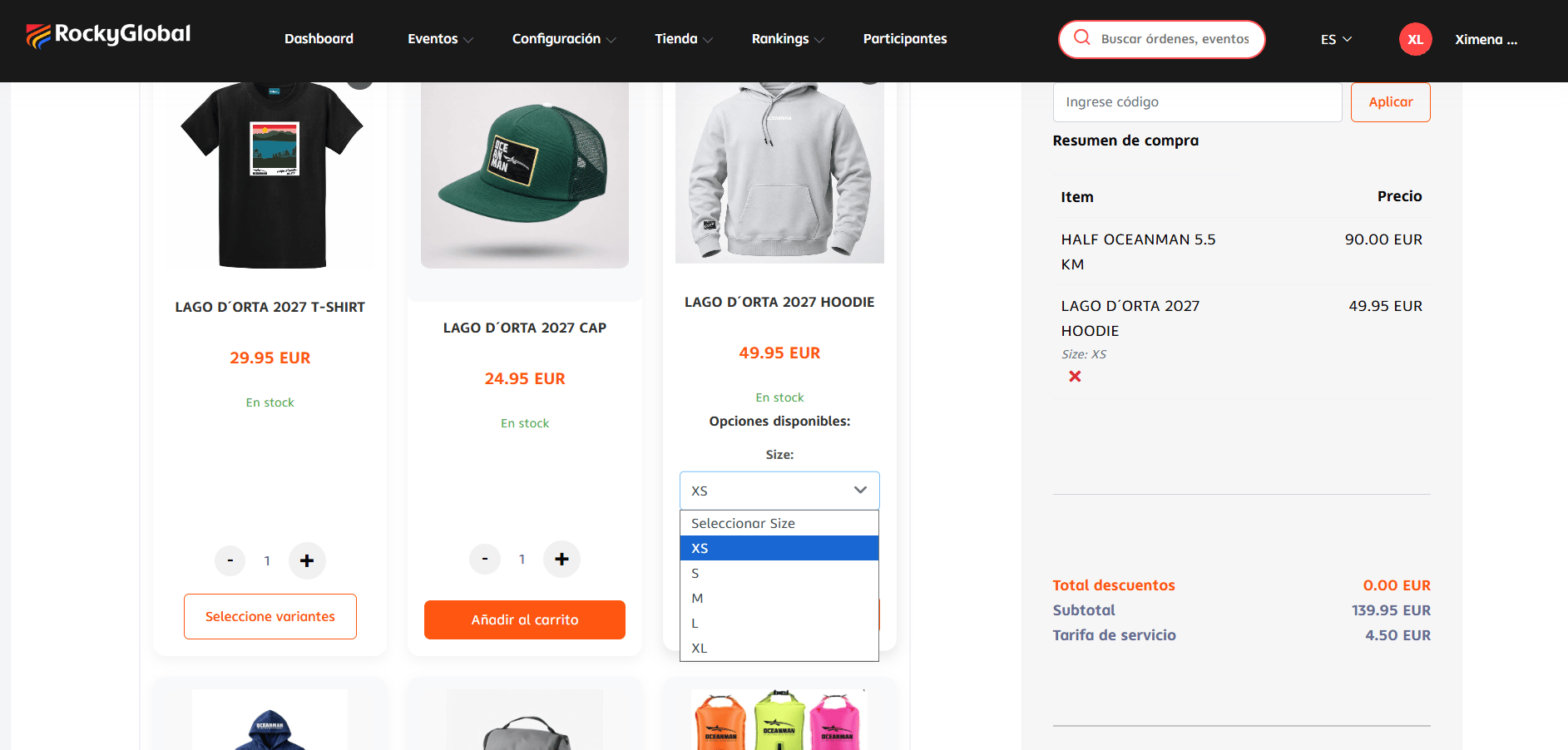
Store reports
The Store section of the event’s Statistics panel shows units sold, revenue, and transactions per product, exportable as PDF or CSV. See Reports and exports.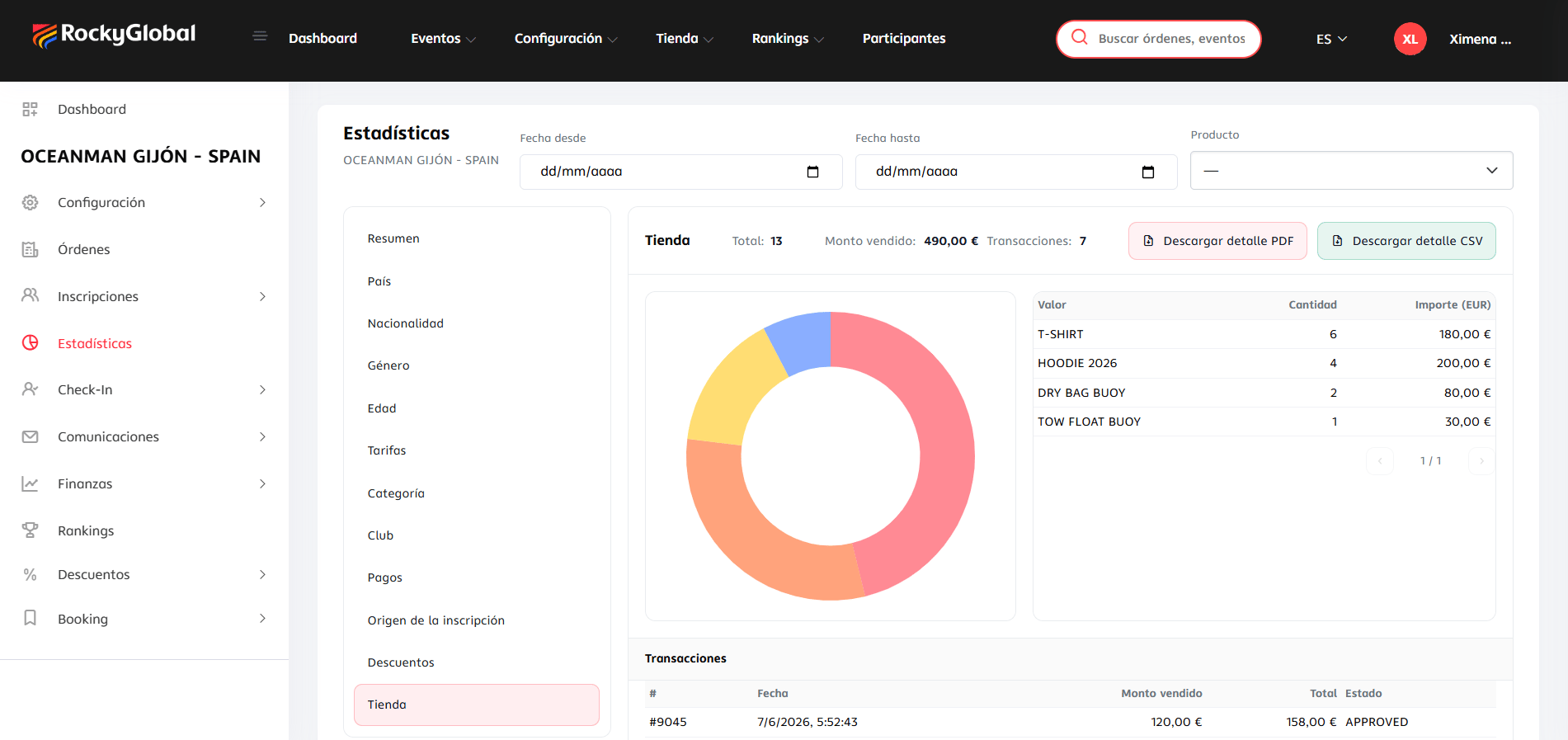
Preventive store closure
Once physical materials (t-shirts, medals, kits) have been shipped by your supplier, close the store to prevent athletes from buying products that cannot be delivered in time.1
Deactivate the event catalog
In Store → Catalogs, edit the catalog linked to the event and uncheck Active. This hides all products for that event.
2
Or deactivate individual products
If only some items should stop selling, edit each product and uncheck Active or deplete its stock.
3
Review store statistics
Check Event statistics → Store for sales by product and variant before closing.